Using a QR Code in Your Zoom or Teams Background
Published · Updated · Video calls
By Virtual Name Cards Editorial Team
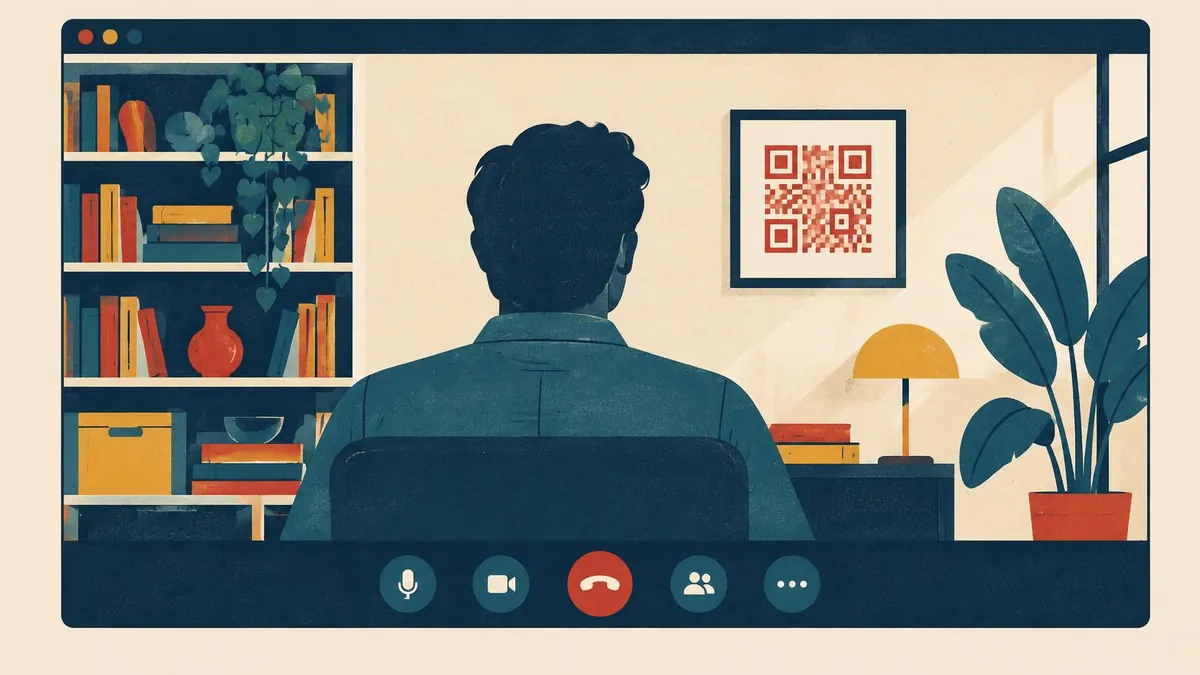
On a video call, the people you meet are looking at a screen. You cannot hand them anything. A QR code in your background gives them a way to save your details without breaking the conversation. This guide shows how to design one that actually scans, and how to add it in Zoom, Teams and Google Meet.
Key points
- Use a 16:9 image at 1920 × 1080 pixels. All three platforms accept it.
- Make the code big: about a quarter to a third of the image height.
- Put it in an upper corner, where your head and shoulders will not cover it.
- Your own preview may look mirrored. Other people see it the right way round.
- Small tiles, blur and slow connections can make a code fail, so paste the link in the chat as well.
Why put a QR code on a video call?
A QR code works best when you are on screen for a while, often in a large tile. Good moments include:
- sales calls and first meetings;
- presentations and webinars;
- interviews;
- panels and online events.
The code should open your virtual name card: one web page with your name, role, phone, email, booking link and a save-contact button. The code only holds your link, so you can edit the page later without changing the background. Our pillar guide to email signatures, Teams and Zoom shows how the same link fits into your other channels.
Size and placement at a glance
| Setting | Recommended | Why |
|---|---|---|
| Image size | 1920 × 1080 pixels, 16:9 | Accepted by Zoom, Teams and Meet |
| Code size | About 250–350 pixels square, or a quarter to a third of the height | Small codes fail in gallery view |
| Position | Upper left or upper right | Your head fills the centre, your shoulders the lower half |
| Clear margin | At least four code "squares" on every side | The QR standard needs a quiet zone |
| Colours | Black or very dark code on white or a pale panel | Low contrast fails first on compressed video |
| Label | "Scan to save my contact details" plus a short link | Tells people what the code does and gives a typed backup |
| File type | PNG (sharp edges) or JPG (smaller file) | Both widely accepted |
Step 1: Design the background
Start with a 1920 × 1080 pixel canvas in any design tool. A free online editor is fine.
- Choose a calm background. A plain wall colour, a soft gradient or a lightly blurred office photo. Busy patterns behind the code reduce contrast.
- Place the code in an upper corner. Picture yourself sitting in the middle of the frame. Your head usually fills the centre, and your shoulders the bottom half.
- Size it generously. It may look large to you. It will look much smaller in someone else's gallery view.
- Keep the quiet zone. Leave a clear margin around the code. Do not let text, logos or the image edge touch it.
- Use dark on light. Avoid inverted codes and pale brand colours.
- Add a label and your link. "Scan to save my contact details" plus a short web address underneath helps people who cannot scan.
- Export as PNG or JPG.
Step 2: Add it in Zoom
- Open the Zoom desktop app and go to Settings.
- Select Background & Effects, then Virtual Backgrounds.
- Select the + button and choose Add Image.
- Pick your file and select it.
A plain wall behind you gives a cleaner result. If your organisation manages your account, an administrator may have switched custom backgrounds off.
Step 3: Add it in Microsoft Teams
- On the pre-join screen, open Background effects (or Video effects, depending on your version).
- Choose Add new and upload your image.
- Select it and join.
- During a meeting, change it from More, then Video effects.
Your organisation can supply approved backgrounds or turn uploads off. If Add new is missing, ask your IT team whether a branded background with your code can be added.
Step 4: Add it in Google Meet
- On the pre-join screen or in a meeting, select Apply visual effects.
- Under Backgrounds, choose the upload option.
- Select your image.
Options vary by account type and device. Managed work and school accounts may block uploads.
Step 5: Understand the mirror effect
Zoom and Teams show your own preview mirrored, like a bathroom mirror. Your code and text may look backwards to you. Other participants see them the right way round, so the code scans normally for them.
Do not flip your image to "fix" this. If you do, it will be backwards for everyone else. In Zoom, you can check by switching off Mirror my video under Settings, Video. Or ask a colleague to scan your code in a test call.
Step 6: Test before it matters
Run a five-minute test with a colleague or a second device.
- Scan from their screen with a phone held at a normal distance.
- Try gallery view. If the code fails in a small tile, make it bigger.
- Check the lighting. Strong light behind you can affect how some apps cut out your background.
- Turn off extra effects. Blur, filters and touch-up settings can soften the code.
- Open the page. The scan should open your current profile, with a working phone number and booking link.
What makes a code fail on video
Video calls are harder on QR codes than paper, for a few reasons:
- Compression. Video is squeezed to save bandwidth. Fine detail goes first.
- Small tiles. In gallery view, your whole frame might be a few centimetres wide on someone else's screen.
- Movement. Virtual backgrounds can shimmer around your outline.
- Glare. People scan a bright screen, often at an angle.
Bigger, simpler codes survive all four.
Tips that make the difference
- Bigger beats prettier. A plain code that fills the corner works better than a small stylised one.
- Keep any logo small. A logo in the middle relies on the code's error correction, which leaves less room for video blur.
- One code, one job. Do not add a second code for your website. Your card can link to it.
- Your webcam does not matter much. The background is added in software. A slow connection matters more, because lower-quality video blurs small codes first.
- Add it to your slides. When you share your screen, your background disappears. Put the same code on your closing slide.
Get the rest of your setup right
A virtual background works best when the software can find your outline easily.
- Sit in front of a plain wall if you can. Fewer objects behind you means less shimmer around your edges.
- Light your face from the front. A window or lamp behind you makes the cut-out less stable.
- Avoid clothes that match your background colour. The software may treat parts of you as background.
- Keep still near the code. Waving a hand across the corner can blur it for a moment.
- Check it after any app update. Menus and defaults move, and an update can reset your chosen background.
Always back it up with a link
Not everyone can scan a screen. Some people join from the phone they would scan with. Paste your link in the meeting chat at the start or end of the call with a short line such as "My contact details, if useful". It stays in the chat history after the meeting.
A link is also the accessible option. Screen readers can read a link. They cannot read a QR code.
Use the same link on LinkedIn
People often look you up on LinkedIn after a call. If your LinkedIn profile carries the same card link, they land on the same details either way. Our guide to adding your virtual name card to LinkedIn shows where it goes, including a banner QR code that follows the same design rules as your video background.
Choosing a code built for screens
Any dynamic QR code that opens your profile will work. Our Virtual Name Card QR Code is designed for this: a dynamic code for Teams, Zoom and Meet backgrounds, slides and webinars, pointing at a profile you can edit at any time.
Frequently Asked Questions
Will a QR code in my Zoom background actually scan?
Usually, if it is large, high-contrast and not covered by you. Test it in gallery view from another screen first, and paste the link in the chat as a backup.
Why does my QR code look backwards in Zoom or Teams?
Your own preview is mirrored. Other participants see the background the right way round, so the code scans normally for them.
What size image should I use for a Zoom or Teams background?
Use 1920 × 1080 pixels in a 16:9 ratio. Zoom, Teams and Google Meet all accept this shape, and it gives the code enough pixels to stay sharp.
Can I use a QR code background if my company manages Teams?
Possibly not. Organisations can turn off custom backgrounds or supply approved ones. Ask your IT team whether a branded background with your code can be added.
Does the QR code need changing when my details change?
No. If the code points to your virtual name card, you update the profile and the code keeps opening the current version.
Should the code go on the left or the right?
Either upper corner works. Choose the side that your head and shoulders cover least when you sit normally, and check it in a test call.
Next steps
Create your background, test it once and keep your link ready for the chat. Then put the same link everywhere else: read the full email signature, Teams and Zoom guide, and if you are new to the idea, start with what a virtual name card is.