A Virtual Meishi Business Card for Remote Sales Teams
Published · Updated · Remote work & teams
By Virtual Meishi Business Cards Editorial Team
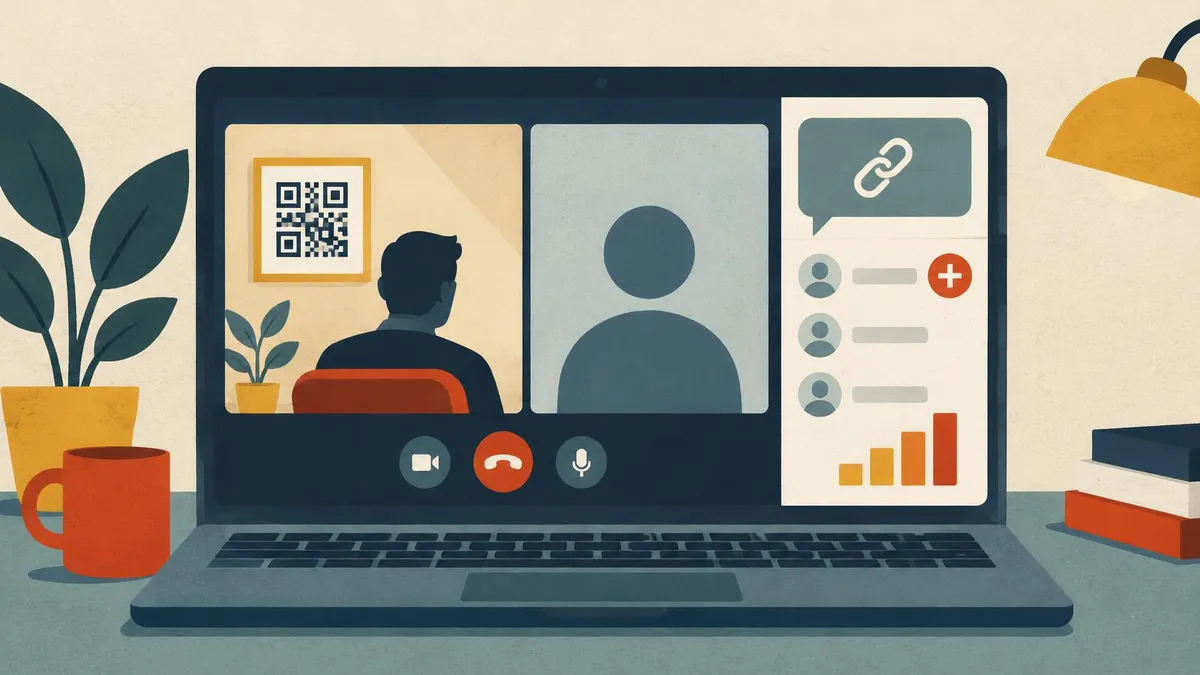
Remote sellers spend their days on calls. A buyer joins, listens, asks questions and leaves. Unless something is in place, your details leave with the call and the buyer's details never reach you. A virtual meishi business card fixes both sides. This guide shows a simple routine for sellers who meet buyers on Teams, Zoom or Google Meet.
Key points
- Share your card during the call, not afterwards: chat link, background QR and last slide.
- Give buyers an easy way to send their details back: contact leads, enquiry forms and bookings.
- Keep everything in one place with the CRM, and use export when you need contacts elsewhere.
- Follow up within 24 hours, using the same link.
- Use analytics to see how your profile is used.
Where a seller's details get lost on remote calls
In a room, you hand over a card. On a call, there is nothing to hand over. Details get lost in a few predictable ways:
- The chat disappears. Many meeting chats are hard to find after the call ends, especially for guests.
- The buyer joined from a phone. They saw your face, but not your email address.
- The invite came from someone else. A colleague or assistant set up the call, so the buyer has their email, not yours.
- Several people joined. The decision maker may have been a silent attendee who never saw your email.
- Your title was in a signature they never read. People skim emails and skip the signature.
The result: a good call, then silence, because the buyer cannot find you quickly when they are ready.
Share during the call
Use three routes at once. Each catches people the others miss.
A link in the meeting chat
At the start of the call, paste your profile link into the chat with one line: "My details and booking link, if useful." Paste it again near the end. People who join late will see the second one.
A QR code on your background
Put a large QR code in an upper corner of your Teams, Zoom or Meet background. Anyone with a phone can scan it without interrupting you. Make it big enough to scan in gallery view and keep it away from your head. Our guide to putting a QR code in your Zoom or Teams background covers sizes, contrast and testing.
Your last slide
When you share your screen, your background disappears. Add the same QR code and link to your final slide, where people expect contact details. Leave it up while you take questions. If you also present at online events, our guide to virtual meishi business cards at virtual events and webinars covers title slides, breakouts and follow-up.
How buyers get your details, and how you get theirs
| Channel | How the buyer gets your details | How you get theirs |
|---|---|---|
| Meeting chat | Clicks your profile link | They book a meeting or send an enquiry from your profile |
| Video background | Scans your QR code with a phone | They leave their details through a contact lead form |
| Final slide | Scans the code or types the short link | They use the booking link on your profile |
| Follow-up email | Clicks the link in your signature | They reply, or book through your profile |
| Chat app (WhatsApp, Slack, Teams chat) | Opens the link you sent | They message back, or submit an enquiry |
| Occasional in-person meeting | Scans your QR code on your phone screen | You use the card scanner on the paper card they hand you |
The pattern is the same everywhere: one link out, one route back.
Capture the buyer back
Sharing your details is half the job. The other half is getting the buyer's details to you, in a form you can act on. These tools are part of our Business Add-ons plan.
Contact leads
Contact leads let a visitor leave their own details on your profile. A buyer who scans your code mid-call can send you their name and email in a few seconds. You do not have to wait for them to email you first.
Enquiry forms
An enquiry gives the buyer a place to say what they need. Ask a short question, such as "What would you like to discuss next?" Forms let you ask a few more questions if you need them, for example team size or timeline. Keep forms short. Every extra field loses people.
Bookings
Bookings let a buyer choose the next meeting time from your profile. For remote sales, this is often the most useful feature. It removes the back-and-forth of finding a slot across time zones.
Card scanner for the occasional in-person meeting
Remote sellers still meet people at the odd conference or office visit. When someone hands you a paper card, the card scanner adds their details without retyping them. It keeps in-person contacts in the same place as everyone else.
Hand-off to the CRM
Business Add-ons includes a CRM and an export feature. Here is what that means in practice:
- CRM. Contacts you collect through your profile are kept together in your dashboard, so you can see who reached you and follow them up.
- Export. When you need those contacts somewhere else, you can export them from your dashboard.
We do not list connections to named third-party systems, because they are not part of the plan. If your company uses another sales system, export is the route: take the contacts out and add them to your own system in the way your company prefers.
A simple rule keeps the data clean: review new contacts at the end of each day, and export on a fixed schedule, such as every Friday.
A follow-up routine within 24 hours
Buyers remember a call best the same day. Here is a routine that fits into a busy diary.
Within an hour of the call:- Check your dashboard for new contact leads, enquiries or bookings from the call.
- Send a short follow-up email. Keep your profile link in the signature.
- If the buyer did not book, include the booking link in the email body with one clear sentence.
- Add notes from the call to the contact in your CRM.
- Send any document you promised. If it is already on your profile, link to it.
- If you have not heard back, send one short message in the channel the buyer used, such as email or chat.
- Include your profile link, so they can save you if they have not already.
Do not send your link three times in one day. Once in the chat, once in the email and once in a gentle reminder is plenty.
What to put on a seller's profile
A seller's profile has one job: make the next step obvious. Keep it focused.
- Name, title and company, exactly as they appear in your email signature.
- A one-line description of who you help, written for the buyer, not for your colleagues.
- The booking link near the top, so the most useful action is the first thing they see.
- One or two documents, such as a short product overview or a pricing guide you are allowed to share.
- Testimonials only if you have permission to use them, quoted accurately.
- Your direct phone number, if buyers are allowed to call you.
- Your LinkedIn profile, because many buyers check it before a second meeting.
Leave off anything the buyer does not need to decide: long company history, every social account, internal team pages. Use Visibility & Order to keep the sections in a sensible order, and hide anything that is not ready yet.
Mistakes remote sellers make
- Sharing the link only in a follow-up email. By then, the buyer may have forgotten the call. Share it during the call.
- A QR code that is too small. If it looks small on your screen, it is far too small in someone's gallery view.
- Asking too much in a form. Name, email and one question is often enough for a first contact.
- Leaving booking slots out of date. A buyer who picks a time you cannot make loses trust quickly.
- Different links for different calls. Use one profile link, so every buyer sees the current version.
- Never checking the dashboard. Leads and enquiries only help if someone reads them the same day.
Measuring with profile analytics
Analytics is included in both plans. Use it to understand how your profile is used after calls. Depending on what your dashboard reports, you can look at things like how often your profile is opened and which links people use.
Use the numbers to improve, not to judge yourself:
- If few people open your profile, make the link easier to find: paste it earlier in the call and keep it on your last slide.
- If people open it but do not book, move the booking link higher on the profile.
- If one document gets lots of attention, mention it on calls.
Look at trends over a few weeks, not single days. One quiet day means little.
Setting up a sales team
If several sellers work together, each needs their own profile, because each has their own name, number and calendar. We do not sell a team admin plan. You can contact us to order one profile per person.
To keep the team consistent:
- use the same template and colours for every profile;
- agree the order of sections, with bookings near the top;
- use the same background design, with each seller's own QR code;
- add each profile link to each seller's email signature.
Our email signature, Teams and Zoom guide has the setup steps for each platform, and our guide to hybrid team rollouts covers the checklist for a wider team.
Which plan a seller needs
Remote sellers usually need Business Add-ons, because bookings, contact leads, enquiries, CRM and export are all part of it. A seller who only needs a professional profile and QR code could start on Brand Presence. Our guide on choosing between the two plans goes through the decision in more detail.
Start with our virtual meishi business card for email signatures, video calls and chat. It is paid once, and set-up is not instant: after payment, your order is recorded for profile set-up.
Frequently Asked Questions
How do I share my contact details on a sales call?
Paste your profile link in the meeting chat, show a QR code on your background and put the same code on your last slide. Use all three, because each reaches different people.
How do I get a buyer's details after a remote call?
Give them a way to send them through your profile. Contact leads, enquiry forms and bookings, all in Business Add-ons, let buyers reach you without waiting for an email.
Does the CRM connect to other sales software?
We do not list connections to named third-party systems. Contacts are kept in the CRM in your dashboard, and you can export them when you need them elsewhere.
What is the card scanner for if I sell remotely?
It is for the occasional in-person meeting. When someone hands you a paper card, the scanner adds their details so they sit with your other contacts.
How soon should I follow up after a call?
Within 24 hours, and ideally the same day. Send a short email with your profile link in the signature and the booking link in the body.
Can every seller on my team have a profile?
Yes. Each person needs their own profile. Contact us to order one profile per person.