How to Use a Virtual Business Card in Your Email Signature, Teams and Zoom
Published · Updated · Email signatures
By Virtual Business Cards Editorial Team
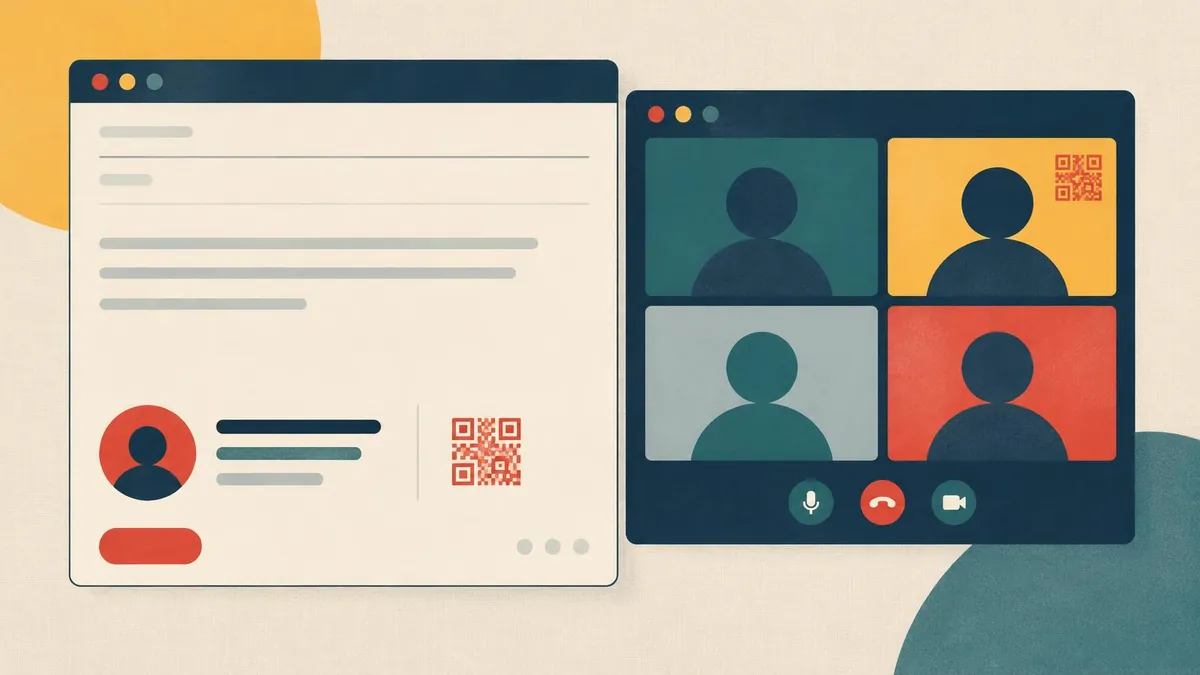
Most new contacts meet you on a screen. They read your email, or they see you on a video call. Those are the two places where a virtual business card does the most work. This guide shows how to set it up in each one, step by step, and how to avoid the mistakes that stop people using it.
Key points
- Put your card link in every email signature. The reader is already on a screen, so a click beats a scan.
- On video calls, a QR code on your background is the one thing people can act on without typing.
- Your own video preview is often mirrored. Other people see your background the right way round.
- Use one link everywhere. When your details change, you edit the profile once.
- Company IT settings can block signature images or custom backgrounds. Check before you design around them.
What you need before you start
You need two things from your virtual business card dashboard:
- Your profile link. Copy it exactly. This is the address you will paste into every signature and chat.
- Your QR code as an image. Download it as a PNG. You will use it on your video background and, if you want, in your signature.
If you are new to the idea, read what a virtual business card is and how it works first. It takes five minutes and makes the rest of this guide easier.
Every channel at a glance
Each channel carries the same profile in a different form. This table sums up where things go and what usually goes wrong.
| Channel | Where the link goes | Where the QR code goes | Common pitfall |
|---|---|---|---|
| Gmail | Settings → See all settings → Signature, as a text link | Signature image, hosted online or in Google Drive | Signature not set as default for replies, so half your emails go out without it |
| Outlook | Settings → Account → Signatures (classic: File → Options → Mail → Signatures) | Signature image | Signatures do not sync between desktop, web and mobile |
| Apple Mail | Mail → Settings → Signatures, then Edit → Add Link | Drag the image into the signature | The image arrives as an attachment for some readers |
| Microsoft Teams | Meeting chat, and your Teams profile where your organisation allows it | Background image, via Background effects | Custom backgrounds switched off by your IT admin |
| Zoom | Meeting chat | Virtual background, via Settings → Background & Effects | Code too small to scan in gallery view |
| Google Meet | Meeting chat | Uploaded background, via Apply visual effects | Uploads blocked on some work and school accounts |
The rest of this guide goes through each row in detail.
Why a link beats a QR code in email
When someone reads your email, they are on a phone or a computer. To scan a QR code on that screen, they would need a second device. Most will not bother. A text link takes one click.
A QR code in your signature still has a use. It helps when an email is printed, forwarded to someone in a meeting room, or shown on a shared screen. Treat it as a backup, never as the only route.
Two more reasons to lead with text:
- Images get blocked. Many email clients hide images until the reader allows them. A text link always shows.
- Text is accessible. Screen readers read a text link aloud. They cannot read a QR code.
How to add your card to Gmail
These steps are for Gmail on a computer. Menu names change from time to time, so treat them as signposts.
- Open Gmail and select the Settings gear, then See all settings.
- On the General tab, scroll down to Signature and choose Create new.
- Give the signature a name.
- Type your name, role and a short call to action, such as "Save my contact details".
- Highlight the call to action, select the link icon and paste your profile link.
- To add a QR code, select the image icon. Gmail needs the image to be stored online or in your Google Drive.
- Under Signature defaults, choose this signature for new emails and for replies and forwards.
- Scroll to the bottom and select Save Changes.
Send a test email to yourself and click the link from your phone.
How to add your card to Outlook
Outlook has several versions, and each keeps its own signature settings.
New Outlook and Outlook on the web:- Open Settings, then Account, then Signatures.
- Select New signature and give it a name.
- Type your call to action, highlight it, insert a link and paste your profile link.
- Insert your QR code as an image if you want one.
- Set it as the default for new messages and for replies, then Save.
- Go to File, Options, Mail, then Signatures.
- Select New, name the signature and type your call to action.
- Highlight the text, select the hyperlink button and paste your link.
- Choose the signature for new messages and replies, then select OK.
Outlook signatures often do not sync between the desktop app, the web version and the mobile app. Set it up in each one you use.
How to add your card to Apple Mail
- Open Mail, then Mail, then Settings (called Preferences on older macOS).
- Select Signatures.
- Choose your email account, then select the + button.
- Type your call to action, highlight it, then use Edit, Add Link and paste your profile link.
- Drag your QR code image into the signature if you want one.
- Close the window to save, and choose the signature for that account.
Untick "Always match my default message font" if your formatting keeps disappearing.
Phone mail apps
Most phone mail apps only accept plain text signatures. Type your call to action and then the full profile link. Most email apps turn a full web address into a clickable link when the message arrives.
When your company controls signatures
Many organisations manage signatures centrally. If yours does, a signature you add yourself may be replaced when the email is sent. Ask whoever manages signatures to add a profile link line for each person. It is one extra line in their template, and it keeps everyone's details current.
How to use your card on video calls
On a call, people see your background for the whole meeting. A QR code there lets them save your details without interrupting you. The aim is simple: a code large enough to scan from someone else's screen, plus a short link they can type.
Design the background
- Use a 16:9 image at 1920 × 1080 pixels. Teams, Zoom and Meet all accept this shape.
- Put the code in an upper corner. Your head and shoulders usually cover the centre and the lower half.
- Make it big. Aim for at least a quarter of the image height. If it looks small to you, it will be too small for someone in gallery view.
- Keep a clear margin around the code. Do not let text or edges touch it.
- Use a dark code on a light panel. Pale brand colours and light-on-dark codes scan less reliably.
- Add your name and a short link under the code, in large plain type.
Our detailed guide to putting a QR code in your Zoom or Teams background covers sizes, contrast and testing in more depth.
Add it in Microsoft Teams
- On the pre-join screen, open Background effects (or Video effects, depending on your version).
- Choose Add new and upload your image.
- Select it and join the meeting.
- During a meeting, change it from More, then Video effects.
Whether you can upload your own image depends on your Teams licence and on settings your administrator controls. If Add new is missing, ask your IT team whether a branded background with your code can be added to the approved list.
Add it in Zoom
- Open the Zoom desktop app and go to Settings.
- Select Background & Effects, then Virtual Backgrounds.
- Select the + button, then Add Image.
- Choose your new background.
If your account is managed by your organisation, custom backgrounds may be switched off.
Add it in Google Meet
- On the pre-join screen or during a call, select Apply visual effects.
- Under Backgrounds, choose the upload option.
- Select your image.
On work or school accounts, an administrator can turn off custom backgrounds.
Why your code looks backwards
Zoom and Teams usually mirror your own preview, like a bathroom mirror. Your code and text may look reversed to you. Other people see them the right way round. Do not flip the image to "fix" it, or it will be backwards for everyone else. In Zoom you can check this by switching off Mirror my video in the video settings.
Paste the link in the chat too
Not everyone can scan a screen. Some people join the call from the same phone they would scan with. At the start or end of any introduction call, paste your link into the meeting chat with a short line such as "My contact details, if useful". It stays in the chat history after the call.
When you share your screen
When you present, your background disappears behind your slides. Add the same QR code and link to your last slide, where people expect contact details.
Chat: Teams, Slack, WhatsApp and iMessage
After a call, the conversation often moves to chat. Your link works there too.
- Save it as a snippet or text shortcut so you can paste it in seconds.
- Send it with a reason, such as "Here are my details, including my booking link."
- Check the preview. Many chat apps show a preview card for links. Make sure your profile photo and name look right.
LinkedIn is another place where your link belongs. Our guide on adding your virtual business card to LinkedIn shows where it fits on your profile.
A checklist for choosing a provider
Before you choose a virtual business card, make sure it does these things:
- [ ] The profile opens in a browser. Nobody should need an app to see it.
- [ ] The QR code is dynamic. It holds your link, not your details, so it never goes out of date.
- [ ] You can edit the profile after sharing it, without getting a new link.
- [ ] There is a save-contact button that downloads a vCard.
- [ ] You can download your QR code as an image for signatures and backgrounds.
- [ ] The pricing is clear about what is one payment and what repeats.
Our virtual business card for email signatures and video calls covers each of these. It is sold as a one-time plan.
Mistakes to avoid
- Using a static QR code. If the code stores your phone number directly, it goes out of date the day you change jobs.
- Hiding the link among social icons. One clear text link beats a row of logos.
- A tiny QR code on your background. If it looks small to you, a phone pointed at someone else's screen will struggle.
- Putting the code where your head sits. Check in a test call before you rely on it.
- Sending a vCard file instead of a link. A .vcf file is a snapshot. It does not update when your details do. Our guide to vCard files explains why.
- Different links in different places. Use one address everywhere so every channel stays current.
- Forgetting your phone. Desktop and phone mail apps usually have separate signature settings.
Test everything once
Spend ten minutes testing before you rely on any of this.
- Send yourself an email from each account and device. Click the signature link on your phone.
- Join a test call from a second device. Scan your code from that screen in gallery view.
- Open your profile in a private browser window. Check that the save-contact button works.
- Ask a colleague to scan and click. A fresh pair of eyes finds problems you miss.
Keeping it current
Once the link is in place, you rarely need to touch your signature or background again. When something changes, edit the profile. Good moments to check it:
- when you change role, number or email;
- when you start a new campaign or offer;
- once a quarter, to check every link still works.
How buying works
- Choose a plan on the virtual business card page. Each plan is paid once at checkout.
- After payment is confirmed, your order is recorded for profile set-up. This is not instant.
- When your profile is ready, add your details.
- Copy your link and QR code into your signatures and video background.
Related guides
This guide is the hub for sharing a virtual business card on screens. For single-channel walkthroughs:
- Using a QR code in your Zoom or Teams background — size, placement, contrast and testing.
- How to add your virtual business card to LinkedIn — Contact info, Featured and banner.
- How to create a free virtual business card — what free options usually include.
- What is a virtual business card? — the basics.
Every guide in this series
Remote work and teams- Which virtual business card plan fits the way you work remotely?
- A virtual business card for remote sales teams
- A virtual business card for remote freelancers and consultants
- Virtual business cards for hybrid and remote teams
- A virtual business card for virtual events and webinars
- A virtual business card for video job interviews
- Add a virtual business card to your Gmail signature
- Add a virtual business card to your Outlook signature
- Add a virtual business card to your Apple Mail signature
- Virtual business card vs email signature
- Share a virtual business card on WhatsApp, Slack and chat
- Can a virtual business card go in Apple Wallet or Google Wallet?
Frequently Asked Questions
Can I add a virtual business card to my email signature?
Yes. Paste your profile link as a text link in the signature settings of Gmail, Outlook or Apple Mail. You can add your QR code as an image too, but keep the text link, because some email clients block images.
Should I use a link or a QR code in my email signature?
Use a link first. The reader is already on a screen, so clicking is quicker than scanning. A QR code helps when an email is printed or shown on a shared screen.
Will a QR code on my Zoom background work?
Usually, if it is large, high-contrast and away from your head. A weak connection can blur fine detail, so test it from a second device and paste the link in the chat as well.
Why does the QR code look backwards in my video preview?
Many video apps mirror your own preview. Other people see your background the right way round, so the code scans normally for them.
Can my company stop me using a custom background or signature?
Yes. Administrators of Teams, Google Workspace and company email can restrict custom backgrounds or manage signatures centrally. Check with your IT team first.
What happens to my signature link when my details change?
Nothing needs to change in the signature. You edit your profile, and the same link and QR code show the new details.
Is a virtual business card the same as a vCard file?
No. A vCard (.vcf) file is a fixed copy of your contact details. A virtual business card is a live web page that usually offers a vCard download as one of its buttons.