Can a Virtual Business Card Go in Apple Wallet or Google Wallet?
Published · Updated · Basics
By Virtual Business Cards Editorial Team
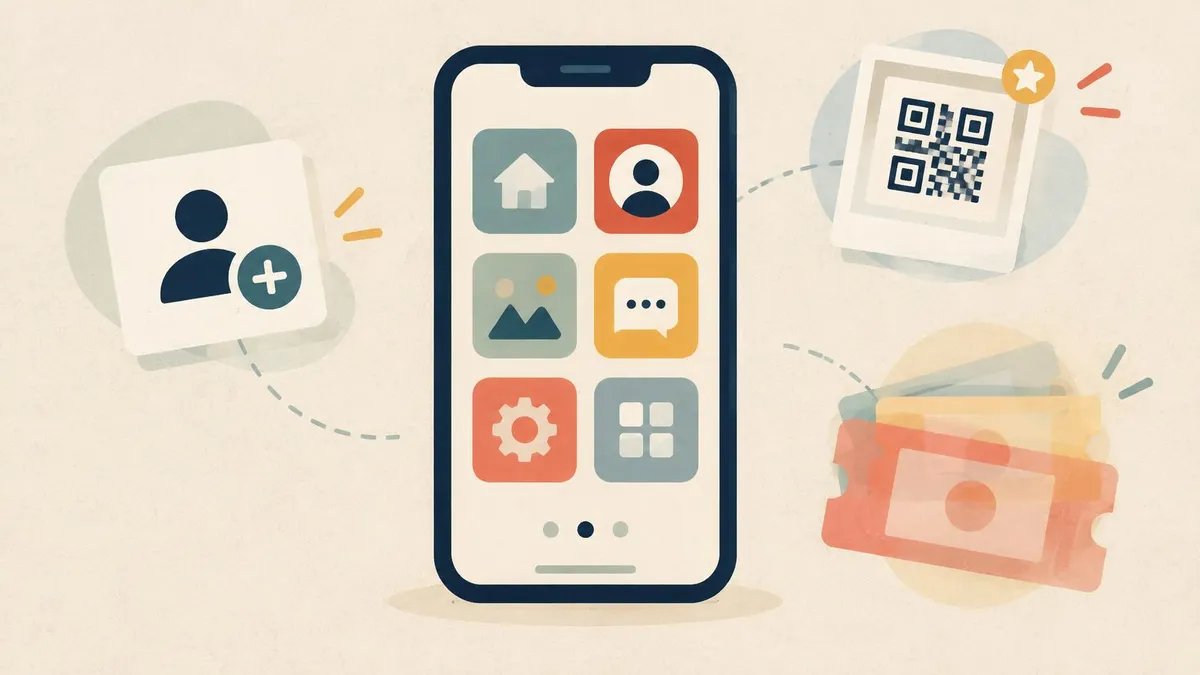
People often ask whether a virtual business card can live in Apple Wallet or Google Wallet, next to their tickets and loyalty cards. It is a fair question. Your phone's wallet is quick to open and always to hand. This guide gives you an honest answer: what wallets are built for, what some providers offer, what our plans include, and the alternatives that work well today.
If you are new to the idea, start with what a virtual business card is.
Key points
- Phone wallets are built for passes: tickets, boarding passes, loyalty cards and similar.
- Both wallets support generic passes, which some providers use to show a QR code.
- Our plans do not include a Wallet pass. We sell profiles you share by link and QR code.
- Good alternatives: save your vCard to Contacts, add your profile to your home screen, or keep your QR code image handy.
- For remote work, the link matters more than the wallet.
What Apple Wallet and Google Wallet are built for
Apple Wallet and Google Wallet store passes and cards on your phone. Typical examples include:
- event and cinema tickets;
- boarding passes;
- loyalty and membership cards;
- payment cards, in the payment part of the wallet.
A pass is a small, designed card with a few fields and, often, a barcode or QR code. The company that issues it can sometimes update it, for example to change a gate number.
Both wallets also support generic passes. These are for anything that does not fit the other types. That is the route some business card providers use.
Can a contact card live in Wallet?
Some providers issue a generic Wallet pass for their business cards. Typically, the pass shows your name, maybe your title and company, and a QR code. When you meet someone, you open the pass and let them scan the code, which usually opens your profile.
That can be handy for showing a code quickly. But be clear about what it is: a pass on your phone that shows a code. It does not add your details to the other person's wallet or contacts by itself. They still scan the code, open the profile and save you from there.
If a Wallet pass matters to you, check each provider's own site for what they offer and on which plans. See vendor site for details; we do not quote other providers' features here.
What our plans include
We checked our own plans before writing this. Our two plans, Brand Presence and Business Add-ons, include a profile you can edit, shared by link and QR code. Brand Presence covers details, social links, documents, blog, products, testimonials, gallery, templates, password protection, visibility and order, contact display and analytics. Business Add-ons adds CRM, card scanner, get reviews, bookings, enquiries, contact leads, subscribers, forms and export.
Neither plan includes an Apple Wallet or Google Wallet pass. We do not issue Wallet passes. If that changes, we will say so on the product pages.What you do get works without a wallet: a permanent link, a QR code and a save-contact button that downloads a vCard.
Why wallet passes appeal, and their limits
It is easy to see why people like the idea of a business card in their wallet.
- It is quick to open. Wallets are designed to open in a second, often from the lock screen.
- It feels familiar. People already use passes for tickets and loyalty cards.
- It can work offline, for showing a code.
But there are limits worth knowing before you choose a provider for that reason alone:
- It only helps in person. A pass on your phone does nothing in an email, a video call or a chat.
- The other person still needs a route to save you. They scan the code and open a page, just as they would with any QR code.
- Updates depend on the provider. Some passes can be updated, others cannot. Check before you rely on it.
- It is one more thing to keep current. Your profile, signature, background and pass should all point to the same details.
For most remote workers, the link does far more of the work.
Alternatives that work today
| Option | Works offline? | Updates when you edit? |
|---|---|---|
| Profile link (in chat, email, signature) | No, opening the profile needs a connection | Yes |
| vCard saved to Contacts (theirs or yours) | Yes, once saved | No, it is a snapshot |
| Profile added to your phone's home screen | No, it opens the web page | Yes |
| QR code image saved in Photos | Yes, you can show the image offline | Yes, it opens your current profile when scanned (the scanner needs a connection) |
| Generic Wallet pass from another provider | Usually yes, for showing the code | Depends on the provider; see vendor site |
Save the vCard to Contacts
Open your own profile and use the save-contact button. Your phone adds your details to Contacts. Many phones let you share a contact from the Contacts app, which sends a vCard. It is quick, but it is a snapshot. If your details change, that copy does not. Our guide to vCard and .vcf files explains why.
Add your profile to your home screen
You can add your profile to your phone's home screen, so it opens like an app:
- iPhone and iPad: open your profile in Safari, select the Share button, then Add to Home Screen.
- Android: open your profile in Chrome, open the menu, then choose Add to Home screen (the wording may vary).
This opens your live profile, so it always shows your current details. It needs a connection.
Keep the QR code image handy
Save your QR code image to your phone's photo library and mark it as a favourite, so it is easy to find. You can show it on screen even without signal. Because the code holds your profile link, it always opens your current details when scanned. Some phones also let you show a favourite photo in a home-screen widget. Check what your phone offers.
Which to use when you mostly work remotely
If most of your introductions happen on screens, the wallet question matters less than it seems. On a video call, nobody can scan a code inside your wallet. In an email, nobody sees it at all. What works remotely is the link:
- in your email signature;
- on your video background as a QR code;
- in chat, after a call.
Our guide to sharing your card on WhatsApp, Slack and chat covers the messaging side.
For the occasional in-person meeting, show your QR code from your photos or home screen, and let the other person scan it. That works today, with no pass needed.
If you want people to save you as a contact first and foremost, our Virtual Contact Card is built around the save-contact step: people save you as a vCard, and you edit your profile later. It is paid once, and set-up is not instant: after payment, your order is recorded for profile set-up.
Frequently Asked Questions
Can I add my virtual business card to Apple Wallet?
Not with our plans. We do not issue Wallet passes. Some other providers offer a generic pass that shows a QR code; see their own sites.
Can I add it to Google Wallet?
Not with our plans either. Our profiles are shared by link and QR code, with a save-contact button.
Is a Wallet pass better than a link?
Not for remote work. A link works in email, video calls and chat. A pass on your phone only helps when someone is in front of you.
How can I show my QR code quickly without a pass?
Save the QR code image to your photos as a favourite, or add your profile to your home screen.
Does a saved contact update when I change my details?
No. A saved contact is a copy. Your profile link always shows your current details.
Will you add Wallet passes in future?
We have no Wallet pass feature today. If that changes, we will say so on the product pages.