A Virtual Business Card for Virtual Events and Webinars
Published · Updated · Remote work & teams
By Virtual Business Cards Editorial Team
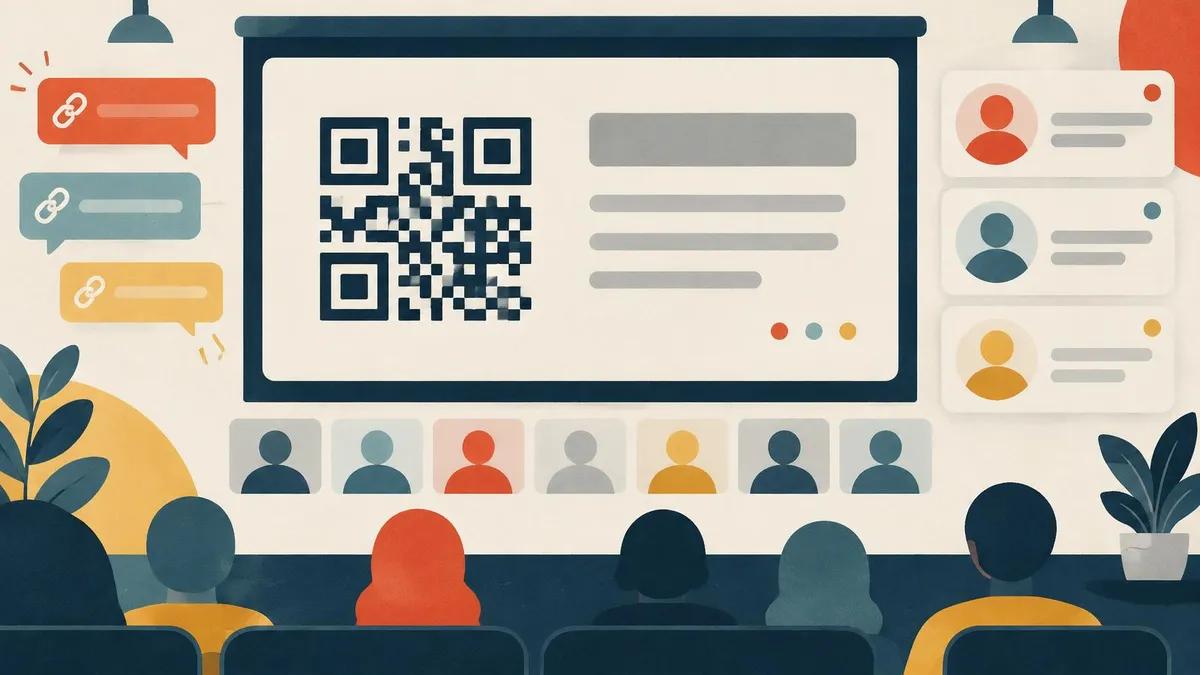
Online events bring many people together for a short time, then scatter them. Speakers want attendees to find them afterwards. Attendees want to remember who said what. Hosts want people to connect. A virtual business card gives everyone one link to share. This guide shows how to use it before, during and after a virtual event or webinar.
If you are new to the idea, start with what a virtual business card is.
Key points
- Before: put your profile link in your speaker bio and your event platform profile.
- During: show a QR code on your title and closing slides, sized for small screens, and paste the link in the chat at the start and end.
- Breakouts: share the link in each room's chat and introduce yourself with it.
- Capture: on Business Add-ons, inquiry forms and contact leads let attendees reach you.
- After: send a follow-up email with the link, and use analytics to see interest.
What to share at each moment
| Event moment | What to share | Format |
|---|---|---|
| Speaker announcement | Your profile link in your bio | Text link on the event page |
| Event platform profile | Your profile link | Website or link field, where offered |
| Title slide | QR code and short link | Large code, dark on light, with the link underneath |
| Start of session | Profile link in the chat | One line: "My details and slides are here" |
| During questions | Closing slide with QR code and link | Leave it on screen |
| End of session | Profile link in the chat again | One line, for late joiners |
| Breakout or networking room | Profile link in the room chat | Paste when you introduce yourself |
| Follow-up | Profile link in the email | Body and signature |
Before the event
The speaker bio link
Most events ask speakers for a short bio. Ask the host to include your profile link. It means attendees can look you up before your talk, and find you again after it. Keep the bio short and end with the link, for example: "Find my contact details and resources at" followed by your profile link.
The event platform profile
Many event platforms give each attendee and speaker a profile. Where there is a website or link field, add your profile link. Use the same photo and one-line description as on your profile, so people recognize you across both.
Prepare your profile
Before the event, check your profile is ready for new visitors:
- your current job title and company;
- a short line about what you speak on;
- your slides or a related document, if you plan to share them;
- a booking link, if you want attendees to book a follow-up;
- a working save-contact button.
During the event
QR codes on the title and closing slides
Your slides are what attendees look at most. Put your QR code and short profile link on two slides:
- Your title slide, so early attendees can save you before you begin.
- Your closing slide, so everyone can save you during questions.
Size the code for small screens. Many attendees watch in a small window or on a laptop with the chat open. A code that fills around a third of the slide height is a sensible starting point. Use a dark code on a light background, with clear space around it, and print the short link underneath for people who cannot scan.
Our guide to using a virtual business card on Zoom covers webinar speaker details and follow-up emails on that platform specifically.
The chat at the start and end
Paste your profile link in the chat when you start, with one line: "My contact details and today's slides are here." Paste it again at the end for anyone who joined late. Check with the host first. Some events limit who can post in chat, or ask speakers to send links through a moderator.
Networking rooms and breakouts
Breakout rooms and networking sessions are where attendees meet each other. They are short, so make introductions quick.
- Paste your link in the room chat as you introduce yourself.
- Keep your display name clear: your name, role and company.
- Ask for theirs. If someone does not have a profile link, ask them to send their details to the inquiry form on yours.
- Note who you met. After each room, write one line about each person, so your follow-up is personal.
If your camera is on, a QR code on your background works in breakouts too. Smaller rooms often mean bigger tiles, so the code is easier to scan.
Capturing attendees who reach out
Sharing your details is half the job. The other half is making it easy for interested attendees to reach you. These tools are part of our Business Add-ons plan:
- Enquiry forms give attendees a place to ask a question or request something after your talk.
- Contact leads let attendees leave their own details on your profile, without waiting for an email reply.
- Bookings let them pick a time for a follow-up call.
- Subscribers let people opt in to hear from you again.
- CRM keeps everyone together in your dashboard, and Export lets you take the list elsewhere.
Keep forms short. Name, email and one question is often enough. Be clear about why you are asking for details and what you will do with them.
Our guide to using a virtual business card in remote sales has a full follow-up routine for contacts collected this way.
After the event
A follow-up email with the link
Within a day, send a short follow-up to the people you met or who reached out:
- thank them for attending or for their question;
- include anything you promised, such as slides;
- keep your profile link in the signature, and in the body if it holds the resources.
If the host sends a follow-up email to all attendees, ask them to include each speaker's profile link.
Analytics to see interest
Analytics is included in both plans. After an event, look at how your profile was used in the following days. Depending on what your dashboard reports, you may see how often it was opened and which links people used. Compare events over time, not single days. If one event brings far more visits, ask why: was the code bigger, or did you mention it more?
Setting up your profile for a specific event
A few small changes make your profile more useful for the people who scan it at an event.
- Put the event's resources first. Use Visibility & Order to move your slides or a related document to the top for the week of the event.
- Add a line about the session, such as the topic you spoke on, so attendees know they have the right person.
- Check the booking link. If you expect follow-up calls, open up some slots in the days after the event.
- Keep it tidy afterwards. When the event has passed, move the resources down and restore your usual order.
Because your link and QR code never change, you can make these edits without reprinting slides or changing your background.
Making it easy for everyone
Not every attendee can scan a code. Some watch on the same phone they would scan with. Others use screen readers or join by phone only.
- Always show the short link next to the code, in large plain type.
- Say the link out loud once, slowly, if it is short enough.
- Post it in the chat, so people can click instead of scanning.
- Keep good contrast on your slides: dark on light, no text over busy images.
Common mistakes at virtual events
- A code only on the closing slide, which late joiners or early leavers never see.
- A code too small for attendees watching in a small window.
- No link in the chat, so people who cannot scan have no route.
- An outdated profile that does not mention the session or its resources.
- No follow-up, so interest fades within a day.
Hosting the event yourself
If you host, help every speaker be found.
- One profile per speaker. Each speaker keeps their own profile, so attendees reach the right person.
- A consistent template. If your organization orders profiles for its speakers, use the same template and colors.
- Speaker pages. Link each speaker's name on your event page to their profile.
- Slide templates. Give speakers a closing slide template with space for their QR code and link.
- Chat rules. Tell speakers when and how they can post links in chat.
- The follow-up email. Include every speaker's profile link.
We do not sell a team admin plan. If you need profiles for several speakers from your organization, contact us about ordering one profile per person.
Choosing a profile for events
Our Virtual Business Card QR Code is designed for slides and webinars: a dynamic code that opens a profile you can edit, so a code on a recording stays useful. It is paid once, and set-up is not instant: after payment, your order is recorded for profile set-up. Order well before the event.
Frequently Asked Questions
Where should my QR code go in a webinar?
On your title slide and your closing slide, large enough for a small window, with the short link underneath.
Should I post my link in the event chat?
Yes, at the start and end, if the host allows it. Check the event's chat rules first.
How do attendees send me their details?
With Business Add-ons, they can use an inquiry form, leave their details as a contact lead or book a call from your profile.
What should I do after a virtual event?
Send a short follow-up email within a day with your profile link, and anything you promised, such as slides.
Can every speaker at my event have a profile?
Yes. Each speaker needs their own profile. Contact us to order one profile per person.
Will my QR code still work in the event recording?
Usually, if it is large and the recording shows your slides full screen. Because it opens your profile, it keeps showing your current details.