How to Create a Free Virtual Business Card
Published · Updated · Basics
By Virtual Business Cards Editorial Team
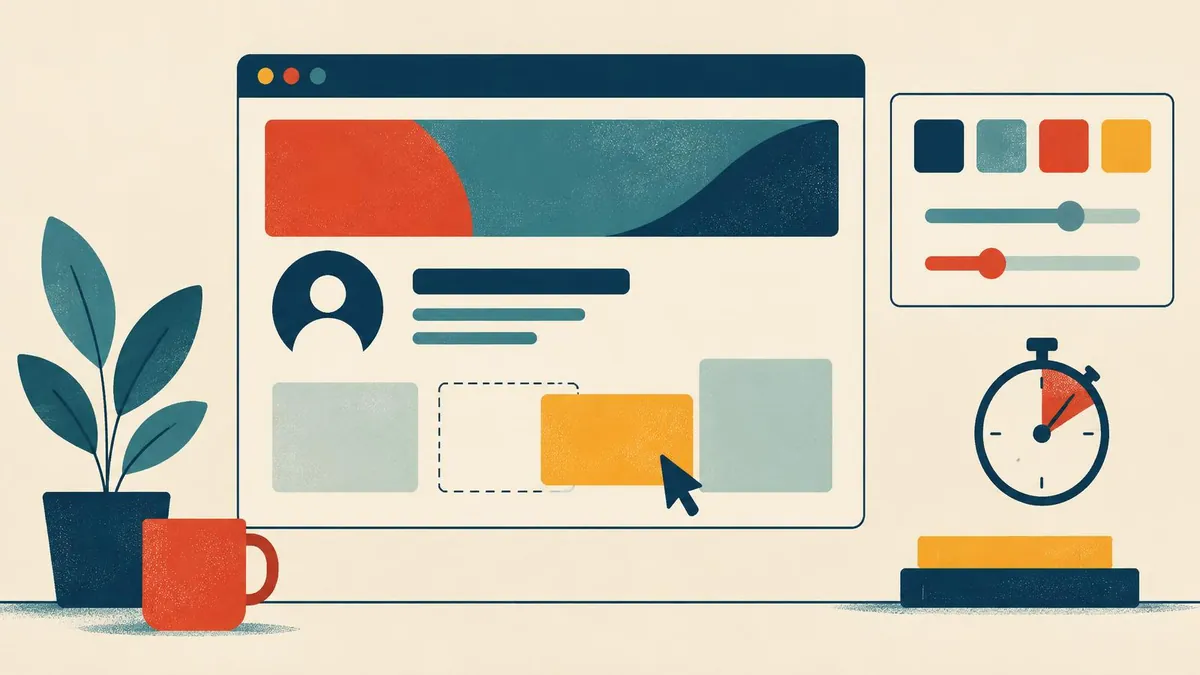
A free virtual business card is a good way to try the idea before you spend anything. Many providers offer one. This guide shows how to make one, what "free" usually means, what free tiers tend to leave out, and how to decide when paying makes sense.
We want to be clear from the start: this store does not offer a free tier. We sell two paid plans, each paid once. This guide is still useful whichever provider you choose, and we explain where our plans fit at the end.
Key points
- "Free" can mean free forever with limits, a time-limited trial, or a free design tool with no hosted profile.
- The person receiving your card should never need an app.
- Free tiers usually stop at analytics, lead capture, branding and team control.
- Check a provider's current limits on its own pricing page. They change, and we do not repeat them here.
- Our store sells paid one-time plans only. There is no free tier and no subscription.
What "free" actually means
The word covers three different arrangements. Work out which one you are being offered.
| Type of free | What you get | What to check | Good for |
|---|---|---|---|
| Free forever, with limits | A permanent profile with capped features | Limits on cards, scans, links or features | Trying the idea long term |
| Free trial | Full features for a set number of days | What happens when the trial ends | Testing paid features |
| Free design tool | A template and a static QR code | Whether there is a hosted, editable page at all | One-off designs, not live profiles |
| Paid one-time plan (our model) | A hosted profile, paid once | What each plan includes | Keeping your card without monthly fees |
For each provider's current limits and prices, see the vendor's own site. They change often, so we do not quote them.
Create your free virtual business card in five steps
Step 1 — Choose a provider and create an account
Pick based on what you will need in six months, not today. Sign up with an email address. A genuinely free tier should not ask for card details. You end up with an empty card in a dashboard and a link reserved for it.
Step 2 — Add your identity and contact details
Enter your full name, job title, company, the phone number you actually answer and your work email. Add a headshot and, if you have one, a logo. A card with a face is easier to recognize weeks later. Your profile now shows who you are and how to reach you.
Step 3 — Add your links and one main action
Add the two or three links that matter: your website, LinkedIn, a booking link or WhatsApp. Then decide what you want visitors to do first, such as "Save my contact" or "Book a call", and put it at the top. A card without a main action is just a leaflet.
Step 4 — Test the save-contact button
Open your card on a phone and use the save-contact button. It should download a vCard file and open your contacts app with your details filled in. Check the name, number and email land in the right fields. Most people skip this. It decides whether you end up in someone's phone.
Step 5 — Download your QR code and copy your link
Download the QR code as a PNG at a good size. Copy your link. You now have two things to share, both pointing at a card you can edit later.
What free tiers usually leave out
Free tiers are usable. They tend to stop at the same points. This table shows what is commonly missing on free tiers and what our paid plans include. For other providers, check their pricing page.
| Feature | Common on free tiers? | Our Brand Presence plan | Our Business Add-ons plan |
|---|---|---|---|
| Hosted profile you can edit | Usually | Included | Included |
| Templates | Often limited | Included | Included |
| Analytics | Often limited or missing | Included | Included |
| Password protection | Often missing | Included | Included |
| Documents, gallery, products, testimonials | Often limited | Included | Included |
| Lead capture, inquiries and forms | Often missing | Not included | Included |
| CRM and export | Often missing | Not included | Included |
| Bookings and review requests | Often missing | Not included | Included |
| Monthly fee | None on free tiers | None, paid once | None, paid once |
What to put on your card
There is no space limit on a web page, so it is tempting to add everything. Resist it.
Include: name, role, company, mobile, email, a headshot, LinkedIn, one website and one main action. If you sell your time, add a booking link. If clients prefer chat, add WhatsApp. Leave off: every social account you have, personal profiles you would not show a client, your home address and long biography text. A card is a handshake, not a CV. Think twice about your personal mobile if you share your card widely. A work number is safer.How to share it
Your link and QR code give you several routes. Most people only use one.
- Email signature. Add the link as text, such as "Save my contact details". Our email signature, Teams and Zoom guide has the steps for Gmail, Outlook and Apple Mail.
- Video calls. Put the QR code on your Teams, Zoom or Meet background and paste the link in the chat.
- LinkedIn. Add the link to your Contact info and Featured section. Our LinkedIn guide shows each step.
- Chat. Send the link on WhatsApp, Slack, Teams chat or iMessage after a conversation.
- On your phone screen. Show the QR code when you meet someone in person.
Make sure nobody needs an app
This is the most important check. Your card should be a web page. When someone scans the code or clicks the link, their phone should open a browser and show your profile. No download, no account.
Two checks before you rely on any card:
- Open it in a private browser window on a phone that has never used it. If it shows your profile and the save button works, you are fine. If it asks for an app, change provider.
- Keep a short link handy. It is the backup when a camera will not focus, and the accessible route for anyone who cannot scan.
When free is no longer enough
Stay on a free tier as long as it does what you need. That is a perfectly good outcome. It is worth paying when:
- you want to know whether people open your card;
- you want visitors to send you their details through a form;
- you need bookings, review requests or CRM export;
- you want your card free of another company's branding;
- you are tired of a monthly fee and would rather pay once.
Where our plans fit
We sell two one-time plans. Brand Presence covers your profile: details, social links, documents, blog, products, testimonials, gallery, templates, password protection, visibility and order, contact display and analytics. Business Add-ons adds CRM, card scanner, review requests, bookings, inquiries, contact leads, subscribers, forms and export. You can compare them on our virtual business card plans page.
There is no free tier and no subscription. Set-up is not instant: after payment, your order is recorded for profile set-up.
Frequently Asked Questions
Are free virtual business cards really free?
Some are free forever with limits. Others are trials that end after a set time. Check the provider's own pricing page to see which kind you are getting and what the limits are.
Do you offer a free virtual business card?
No. We sell two paid plans, each paid once with no subscription. This guide explains how free options work so you can compare.
Do I need an app to create a free virtual business card?
Usually not. Most providers let you build the card in a web browser. More importantly, the person receiving it should never need an app.
What should a virtual business card include?
Your name, job title, company, mobile, email, a headshot, LinkedIn, one website and one main action, such as "save my contact" or "book a call".
Can I put a free virtual business card in my email signature?
Usually yes. Add the link as text in your signature settings. Some free tiers show the provider's branding on your profile, so check what recipients will see.
Can I edit a free virtual business card after sharing it?
Yes, if it is a hosted profile. The link and QR code point at the page, so changes show up straight away. A static QR code made in a design tool cannot be changed.
Start free, upgrade only if you need to
Build a card, use it for a month, and see whether you reach for it. If you do, the paid features may start to earn their place. If you do not, you have lost nothing. For the basics behind all of this, read what a virtual business card is.