How to Use a Virtual Business Card in Google Meet
Published · Updated · Video calls
By Virtual Business Cards Editorial Team
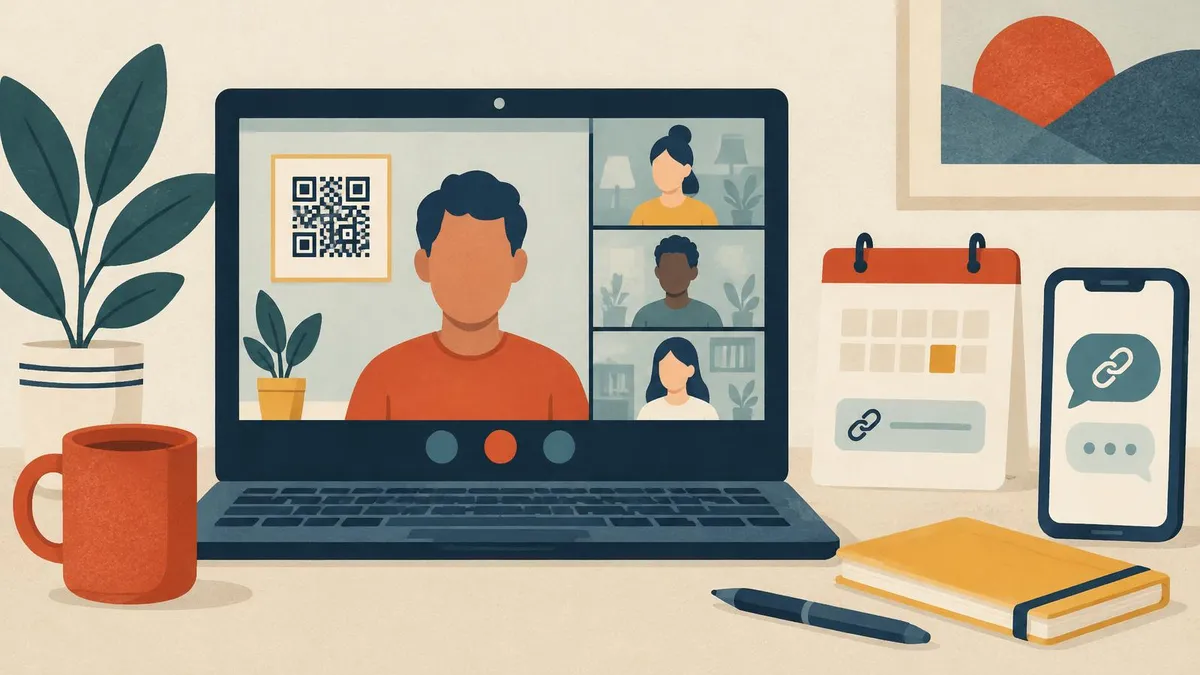
Google Meet is built into Google Calendar and Gmail, so for many remote teams it is the default way to meet. Meet is simpler than some other video platforms. That makes it even more important to put your details in the few places where people will actually see them. This guide shows where your virtual business card fits in a Meet call, and what to do before people leave.
For email and other video platforms, see our pillar guide to email signatures, Teams and Zoom.
Menu names checked on 31 Oct 2026; if your version differs, look for visual effects or Backgrounds in the call settings.
Key points
- Upload your own background with a QR code, and check how it looks to others.
- Put your profile link in the Google Calendar invite, with a one-line prompt.
- Keep the link in your Gmail signature, so every follow-up carries it.
- Paste the link in the Meet chat before the call ends, and send it by email too.
- On Chromebooks and phones, options vary. Check what your device offers.
Meet vs Teams vs Zoom: where your details can go
| Where your details can go | Google Meet | Microsoft Teams | Zoom |
|---|---|---|---|
| Background image with a QR code | Yes, upload your own, where your account allows | Yes, Add new in background effects | Yes, Virtual Backgrounds |
| Link in the meeting chat | Yes, during the call | Yes | Yes |
| Link in the invite | Yes, in the Google Calendar event description | Yes, in the invite body | Yes, in the invite description |
| Profile or status note | Mostly from your Google or Workspace profile | Status message under your control | Zoom profile and display name |
| Email signature alongside | Gmail signature | Outlook signature | Your own email client |
Our guides to Microsoft Teams and Zoom cover those platforms in detail.
Meet background images with a QR code
Meet lets you blur your background or replace it with an image. On a computer, you can usually upload your own.
- On the pre-join screen, or during a call, select Apply visual effects (the label may be Backgrounds and effects in some versions).
- Under Backgrounds, choose the option to upload a background image.
- Select your image file.
- Check the preview, then join or return to the call.
Design the image at 1920 × 1080 pixels with a large, dark-on-light QR code in an upper corner. Keep the centre clear for your head and shoulders. Add your name and a short link under the code. Our guide to QR codes in video backgrounds covers size, contrast and testing in detail.
The mirroring check
Meet may show your own video mirrored, so your code and text look backwards to you. Other people see them the right way round. Do not flip your image to correct it.
The only reliable check is from another device. Join the call from a second laptop or phone, look at your own tile and scan the code. If it fails in a small tile, make it bigger.
If you use a work or school account, an administrator can switch off custom backgrounds. If the upload option is missing, ask your IT team.
The Google Calendar invite description
When you create a Meet call from Google Calendar, the event has a description field. Guests see it in their calendar before the call, and it stays there afterwards.
Add a short line above anything else:
"Before we meet: my contact details and booking link are here" followed by your profile link.
A few tips:
- Keep it to one line, so it is not buried under joining details.
- Use a full link, so it works in every calendar app.
- Add it to your event templates, if you create similar meetings often.
- Check forwarded invites. If a guest forwards the invite to a colleague, the link goes with it.
Your Workspace profile and Gmail signature
In Google Workspace, much of your profile, such as your name, title and department, usually comes from your organisation's directory. People see it when they hover over your name in Gmail, Calendar or Meet. You may not be able to add a link there yourself.
Your Gmail signature is under your control, and it goes out with every invite reply and follow-up email. Add your profile link as a short text call to action. Our guide to adding your card to a Gmail signature has the steps for the web and the phone apps.
Chromebook and mobile notes
Meet runs in the Chrome browser on Chromebooks and computers, and in the Meet or Gmail app on phones. Features differ a little between them.
- Chromebooks. Background effects are available on many Chromebooks, but older or lower-powered models may offer fewer options. Upload your background from the browser if you can, and test it.
- Phones and tablets. The Meet app offers backgrounds and effects, but uploading your own image may not be available on every device or version. If you cannot add your QR background on a phone, rely on the chat and the invite.
- Joining from a phone. If you join from your phone, other people cannot scan a code on your screen with the same phone. That is another reason to paste the link.
When you are unsure what your device offers, open the visual effects menu and look for an upload option.
After the call
Meet chat is useful, but it is not a permanent record for everyone. In many setups, people who leave the call can no longer see the in-call messages. So treat the chat as a reminder, not a store.
- Paste your link in the chat before the call ends, with a line such as "My details, if useful."
- Send a short follow-up email with your profile link in the signature, and in the body if you promised something.
- If the call was recorded, mention in the follow-up that your details are on your last slide too.
- Update your profile, not your messages. If something changed during the call, edit your profile once. Every link you shared shows the change.
Common mistakes in Meet
- A QR code that is too small for a gallery tile.
- Relying on the chat being available after the call.
- An empty invite description, when it is the one place guests will look before and after.
- Different links in Calendar and Gmail. Use one profile link everywhere.
- Effects stacked on top of the code, such as filters that soften edges.
Choosing a code built for screens
Any dynamic QR code that opens your profile works in a Meet background. Our Virtual Business Card QR Code is designed for video calls: a dynamic code for Meet, Teams and Zoom backgrounds, slides and webinars, pointing at a profile you can edit. It is paid once, and set-up is not instant: after payment, your order is recorded for profile set-up.
Frequently Asked Questions
Can I use a custom background in Google Meet?
On a computer, usually yes. Open Apply visual effects, choose to upload a background and select your image. Work and school accounts may restrict this.
Why does my QR code look backwards in Meet?
Your own preview may be mirrored. Other people see your background the right way round. Check by scanning from a second device.
Where should I put my profile link for a Meet call?
In the Google Calendar invite description, in the Meet chat and in your Gmail signature. Use the same link in all three.
Does the Meet chat stay after the call?
Not for everyone. In many setups, people who leave can no longer see in-call messages. Send the link by email too.
Can I add a link to my Google Workspace profile?
Your Workspace profile usually comes from your organisation's directory. Use your Gmail signature and the invite instead.
Can I add a QR background on my phone?
It depends on your device and app version. If uploading is not available, share your link in the chat and the invite.