How to Add a Virtual Business Card to Your Gmail Signature
Published · Updated · Email signatures
By Virtual Business Cards Editorial Team
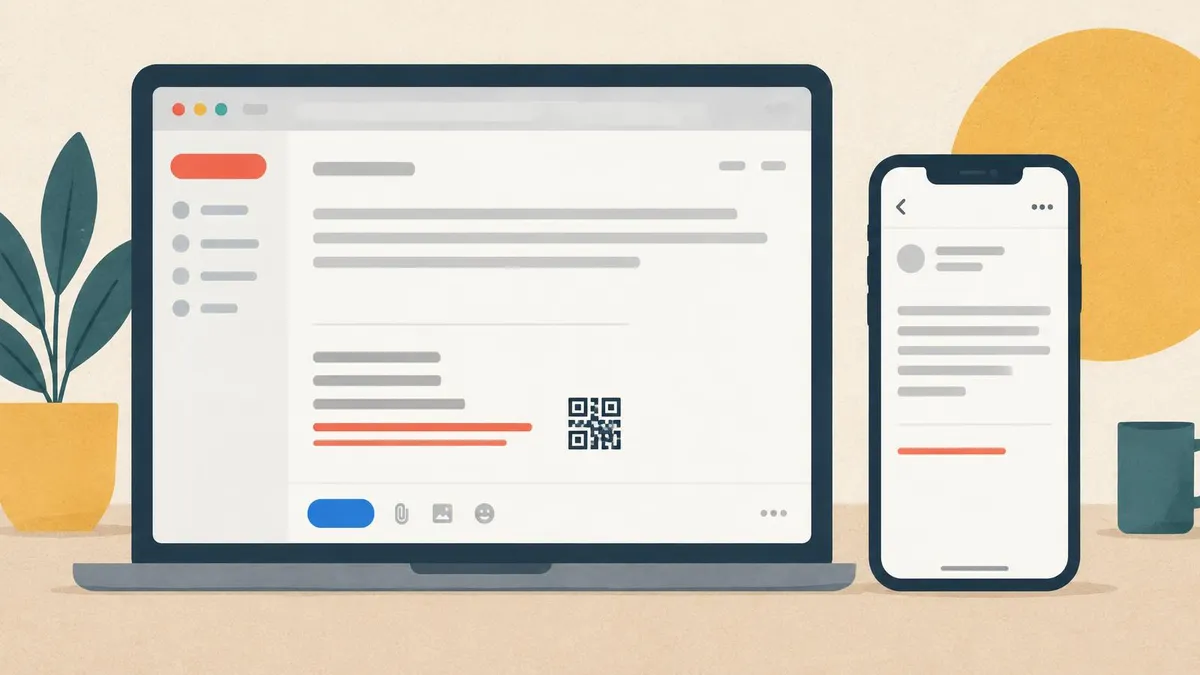
Gmail is where many remote workers send most of their email. That makes your Gmail signature one of the busiest places your details appear. This guide shows how to add your virtual business card to it on the web, on Android and on iPhone, and how to make sure it works for the people who read it.
For the wider picture across email, Teams and Zoom, see our pillar guide to email signatures and video calls.
Menu names checked on 31 Oct 2026; if your version differs, look for Signature in Settings.
Key points
- Keep the signature short: a few lines of text, one profile link and an optional small QR image.
- On the web, Gmail supports links, formatting and images.
- On the Gmail app for Android and iPhone, the mobile signature is plain text, so use the link.
- A QR image must be hosted somewhere public, and some readers will not see it. The text link is what matters.
- Test by sending to Outlook and Apple Mail, and check how it looks in dark mode.
What to put in a Gmail signature
A good Gmail signature does one job: it tells the reader who you are and gives them one way to save you. Aim for this:
- Your name.
- Your job title and company.
- One line about what you do, written for the reader.
- A linked call to action, such as "Save my contact details" or "View my contact card", pointing at your profile link.
- Optional: a small QR image of the same link, for emails that are printed or shown on a shared screen.
Leave out rows of social icons, long disclaimers you are not required to include, and quotes. Your profile can hold your LinkedIn, website, documents and booking link. The signature only needs to get people there.
What each Gmail version supports
| What the signature supports | Gmail on the web | Gmail app on Android | Gmail app on iPhone |
|---|---|---|---|
| Where you set it | Settings → See all settings → General → Signature | Settings → your account → Mobile signature | Settings → Signature settings |
| Linked text (a label that opens your profile) | Yes | No, plain text only | No, plain text only |
| Full web address that becomes clickable | Yes | Usually, when the message arrives | Usually, when the message arrives |
| Images, including a QR code | Yes | No | No |
| Formatting (bold, color, font) | Yes | No | No |
| Different signatures for new emails and replies | Yes | No | No |
| Syncs to your other devices | Across Gmail on the web | Per device | Per device |
The pattern is clear. Build the full signature on the web, and keep the mobile version to a single line with your full profile link.
Steps in Gmail on the web
- Open Gmail in a browser on a computer.
- Select the Settings gear at the top right, then See all settings.
- Stay on the General tab and scroll down to Signature.
- Select Create new and give the signature a name, such as "Profile link".
- Type your name, title and one line in the editor.
- Type your call to action, highlight it, select the link icon and paste your profile link.
- If you want a QR image, place the cursor below the text and select the image icon (see the next section for where to host it).
- Under Signature defaults, choose this signature for new emails and for reply/forward.
- If you want the signature to sit directly under your reply rather than below the quoted thread, tick the option to insert it before quoted text, where your version offers it.
- Scroll to the bottom of the page and select Save Changes.
If you send from more than one address, each one can have its own default signature. Set the defaults for each address you use.
Gmail on Android and iPhone
The Gmail app does not use your web signature formatting. It has its own mobile signature, which is plain text.
On Android:- Open the Gmail app and open the menu.
- Select Settings, then the account you want to change.
- Select Mobile signature.
- Type a short line and your full profile link, for example: "Your Name, Job Title. Save my details: " followed by the link.
- Select OK.
- Open the Gmail app and open the menu.
- Select Settings, then Signature settings.
- Switch on Mobile signature for the account.
- Type the same short line and your full profile link.
- Go back to save.
Because the mobile signature is plain text, you cannot hide the link behind a label. Paste the whole address. Most email clients turn a full web address into a clickable link when the message arrives.
How Gmail combines web and mobile signatures can vary by device and version. After setting both, send a test from your phone and check what actually arrives.
Hosting the QR image
Gmail does not store signature images inside the signature itself. It points at an image somewhere online. You have two sensible options.
Option 1: use the profile's own QR image address. If your profile dashboard gives you a web address for your QR image, use it with Gmail's image option for a web address. This keeps the image in one place. Option 2: upload it to Google Drive. Save the QR code as a PNG, upload it to your Drive, and insert it from Drive in the signature editor. The file must be shared so that anyone with the link can view it. Otherwise, recipients may see a broken image.Keep the image small, roughly the height of two or three lines of text, and give it a plain white background.
The image-blocking trade-off
Some email clients do not show images until the reader allows them. Others show signature images as attachments. Either way, a QR image is not guaranteed to appear. That is why the text link always comes first. Treat the QR code as a bonus for printed or forwarded emails, never as the only way to reach your profile.
A test checklist
Spend ten minutes testing before you rely on the new signature.
- [ ] Send to an Outlook address. Check the link works and the image, if any, is not shown as an attachment.
- [ ] Send to an Apple Mail address. Open it on a Mac or iPhone and click the link.
- [ ] Reply to an email and check the signature appears in replies, not only new emails.
- [ ] Check dark mode. Open the email with dark mode switched on. A QR code with a transparent background can disappear on a dark screen, so use a white background behind the code.
- [ ] Send from the Gmail app and check the plain-text signature arrives with a clickable link.
- [ ] Open your profile from the link and use the save-contact button.
If you also use Outlook or Apple Mail yourself, see our guides for the Outlook signature and the Apple Mail signature. Each keeps its own settings.
Google Workspace admin-wide signatures
If you use Gmail through Google Workspace at work, your administrator may control part of what goes out. Workspace admins can add a standard footer to outgoing email for the whole organization, and some companies use signature management tools as well. If your organization does this, a signature you set yourself may appear alongside a company footer, or be replaced.
Ask your administrator before you design your own. The simplest request is one extra line in the company template: each person's profile link. It keeps everyone's details current without anyone editing their own signature.
Common mistakes
- Linking only the QR image. If the image is blocked, the link disappears too.
- Forgetting replies. The default for reply and forward is set separately.
- A Drive image that is not shared. Recipients see a broken image box.
- A long mobile signature. On a phone, keep it to one line and the link.
- Different links on different devices. Use the same profile link everywhere.
Choosing a profile for email
If most of your introductions happen by email, a link-first profile is the natural fit. Our Virtual Business Card Link gives you one permanent address for Gmail signatures, calendar invites, proposals and LinkedIn. It is paid once, and set-up is not instant: after payment, your order is recorded for profile set-up.
Frequently Asked Questions
How do I add a link to my Gmail signature?
In Gmail on the web, open Settings, See all settings, then Signature on the General tab. Type your call to action, highlight it, select the link icon and paste your profile link. Save Changes at the bottom.
Can I add a QR code to my Gmail signature?
Yes, on the web. Insert it as an image from a web address or from Google Drive. If you use Drive, share the file so anyone with the link can view it.
Why does my Gmail signature not show on my phone?
The Gmail app uses a separate mobile signature, which is plain text. Set it in the app's settings and include your full profile link.
Why do some people not see my signature image?
Some email clients block images until the reader allows them, or show them as attachments. Keep a text link so everyone can reach your profile.
Can my company set a signature for everyone?
Google Workspace administrators can add a standard footer to outgoing email. Ask your administrator to include a profile link line for each person.
Should my Gmail signature be the same for replies?
Usually yes. Set the same signature for new emails and for reply and forward, so every message carries your link.