How to Add Your Virtual Visiting Card to LinkedIn
Published · Updated · Sharing & messaging
By Virtual Visiting Cards Editorial Team
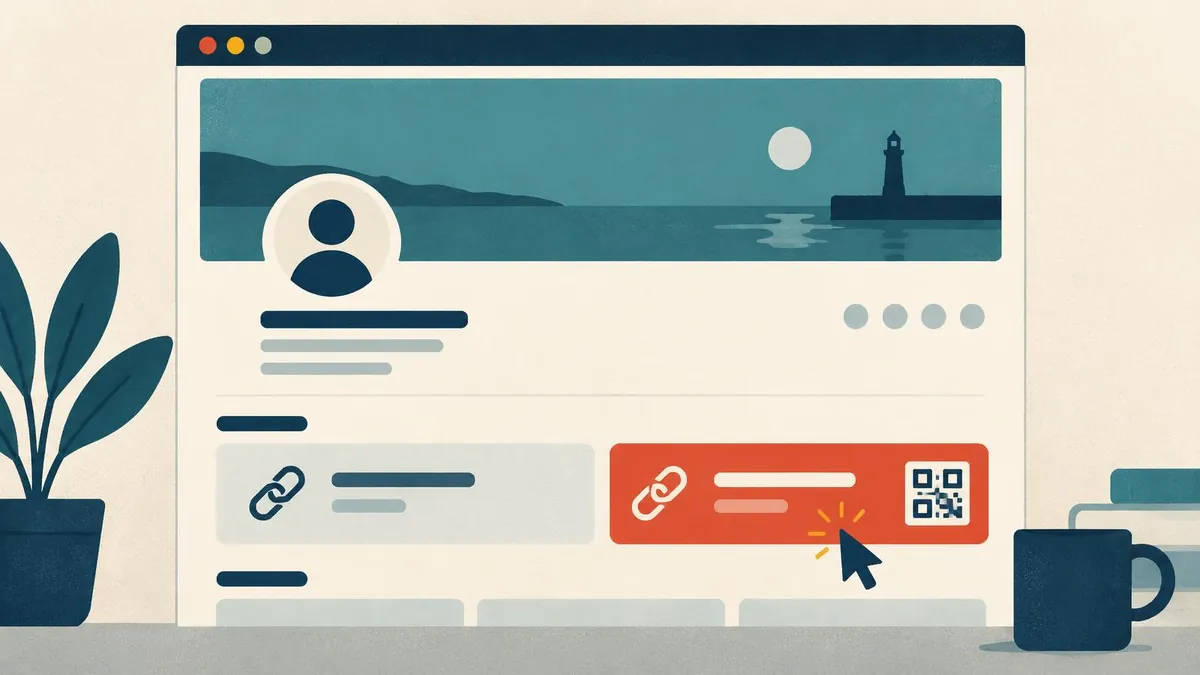
LinkedIn is often the first place people look you up after a meeting or an email. Your profile tells them about your career. Your virtual visiting card helps them take the next step: call you, email you, book time or save you to their phone. This guide shows where the link goes on LinkedIn and how to set up each spot.
Key points
- The Contact info Website field is the most reliable place for your link. It is clickable on desktop and in the app.
- The Featured section shows your link as a card with a title and image, high on your profile.
- A QR code in your banner helps on laptops and shared screens, but not for someone already on their phone.
- Web addresses typed into your About section may not be clickable. Treat them as text.
- Use one link everywhere. When your details change, you edit the profile once.
Why put a virtual visiting card on LinkedIn?
LinkedIn already shows your job history. So what does a card add? It covers the step after someone decides to get in touch.
LinkedIn is built to keep conversations inside LinkedIn. A virtual visiting card is built to get your details into the other person's phone. It gives them:
- a save-contact button that adds you to their address book;
- your direct phone number and email;
- your booking link, if you use one;
- the other links that matter to your work.
That helps clients, recruiters, suppliers and event contacts who find you on LinkedIn but need to reach you somewhere else. If you are new to the idea, our guide to what a virtual visiting card is covers the basics.
The five places your link can go
| Place on LinkedIn | Clickable? | Who sees it | Best for | Effort |
|---|---|---|---|---|
| Contact info → Website | Yes | Anyone who opens your Contact info | The main, reliable route | 2 minutes |
| Featured section | Yes | Everyone who visits your profile | Making the link visible | 5 minutes |
| Banner image QR code | Scan only | People viewing on a laptop or projector | Talks, events, shared screens | 20 minutes |
| Messages and InMail | Yes | The person you message | Follow-up after a conversation | Seconds |
| Posts and comments | Yes | Your network | Announcing a talk or new role | Seconds |
Start with the first two. They take a few minutes and cover most visitors.
Before you start
Have two things ready:
- Your profile link. Copy it from your card dashboard. Use the same link as in your email signature.
- Your QR code image, if you plan to add it to your banner. Download it at a good size.
LinkedIn changes its layout often, so button names may differ slightly on your account.
Step 1: Add the link to your Contact info
This is the single most useful step.
- Open LinkedIn and go to your profile.
- Select Contact info under your name, then the pencil icon.
- Find Website and choose Add website.
- Paste your virtual visiting card link.
- Choose a website type. "Personal" or "Other" both work. Some accounts let you type your own label.
- Save.
Anyone who opens your Contact info now sees a clickable link. LinkedIn only allows a few websites here. If you already list a company site and a portfolio, decide which link earns the space. Your card usually wins, because it can link to the others.
Step 2: Add your card to the Featured section
The Featured section sits high on your profile. It shows each item as a card with a title, a short description and an image.
- On your profile, select Add profile section, or the + on your existing Featured section.
- Choose Add featured, then Add a link.
- Paste your profile link and confirm.
- Change the title to say what the click gives, for example "Save my contact details" or "Book a call with me".
- Add a one-line description, such as "Phone, email, booking link and a save-contact button."
- Save. If you have several featured items, drag this one to the front.
LinkedIn pulls a preview image from the page. If it looks wrong, update the photo or logo on your card, then add the link again.
Step 3: Add a QR code to your banner
Your banner is the wide image behind your profile photo. LinkedIn recommends 1584 × 396 pixels. A QR code here helps when your profile is shown on a projector at a talk, viewed on a laptop, or screenshotted.
- Put the code on the right. Your profile photo covers the lower left on desktop.
- Make it large. Fill most of the banner height so it survives LinkedIn's image compression.
- Use a dark code on a plain, light background with clear space around it.
- Add a short line beside it, such as "Scan to save my contact details".
- Check it in the app. The banner is cropped differently on phones, so preview it and scan it from another device.
Be realistic about this spot. Someone browsing LinkedIn on their phone cannot scan their own screen. The banner code is a bonus. Contact info and Featured do the main work.
The same design rules apply to video calls. Our guide to using a QR code in your Zoom or Teams background goes into size, contrast and testing.
Step 4: Use your link in messages
After a first conversation, send your link with a short, useful line:
- "Here are my details if you'd like to save them."
- "My booking link is on this page if you want to pick a time."
- "Everything you need to reach me is here."
Save the line as a text shortcut on your phone and computer so it takes seconds to send.
Job seekers and recruiters
If you are looking for work, your card can hold your CV as a document, a portfolio link and the best way to reach you. Recruiters can then save you in one step. If you recruit, sending your card after a first call gives candidates your direct line and booking link, so they do not have to hunt through LinkedIn messages to find you again. Our guide to using a virtual visiting card for video interviews covers both sides in more detail.
Step 5: Use it in posts and events
- Announcements. When you start a new role, speak at an event or launch a service, link to your card.
- First comment. Some people put external links in the first comment of a post instead of the post itself. Try both and see what works for you.
- Event pages. If you host a LinkedIn event, add your card link to the details so attendees can find you after.
What about the About section?
You can write your link in your About section. LinkedIn does not reliably turn it into a clickable link, so readers may have to copy it. Mention it as text and point readers to your Contact info.
Make the card behind the link worth clicking
A link is only as good as the page it opens. Before you promote it, check that your card shows:
- your current job title and company;
- a phone number you answer;
- your work email;
- a booking link, if people book time with you;
- a working save-contact button.
Our Virtual Visiting Card Link is built for this link-first sharing. It gives you one permanent address for LinkedIn, email signatures, calendar invites and proposals.
Keep every channel in step
LinkedIn is one channel among several. If your email signature, LinkedIn and video background all use the same link, one edit updates them all. Our email signature, Teams and Zoom guide explains how to set up the other channels.
Mistakes to avoid
- Different links in different places. You will forget to update one of them.
- A tiny banner QR code. If it is less than about a quarter of the banner height, it will rarely scan.
- A vague Featured title. "My card" says little. Say what the visitor gets.
- An out-of-date card. Check the profile behind the link before you share it widely.
- Relying on the About section. The link there may not be clickable.
Frequently Asked Questions
Can I add a virtual visiting card to LinkedIn for free?
Adding a link to your Contact info or Featured section is free on a standard LinkedIn account. You only need the link itself, which comes from your virtual visiting card provider.
Is the link in my LinkedIn About section clickable?
Not reliably. LinkedIn does not consistently turn web addresses in the About section into links. Put the link in Contact info and Featured, and treat any mention in About as plain text.
What size should a QR code be on my LinkedIn banner?
Make it fill most of the banner height, on a plain light background, on the right-hand side so your profile photo does not cover it. Test it by scanning your profile on a laptop screen.
Should I share my LinkedIn URL or my card link on other channels?
Share your card link. It opens in any browser without a LinkedIn account, offers a save-contact button and can link to your LinkedIn profile anyway.
Will my LinkedIn link break if I change jobs?
No, as long as you edit your card rather than create a new one. The link stays the same and visitors see your new role.
Can I add more than one link to my LinkedIn Contact info?
Yes, LinkedIn allows a few websites. If space is tight, keep your card link, because it can point to your company site and portfolio.
Next steps
Start with Contact info and Featured. Then add the same link to your email signature and video background using our pillar guide to email signatures, Teams and Zoom. If you have not made a card yet, our guide to creating a free virtual visiting card explains what free options usually include.