How to Use a Virtual Business Card on Zoom
Published · Updated · Video calls
By Virtual Business Cards Editorial Team
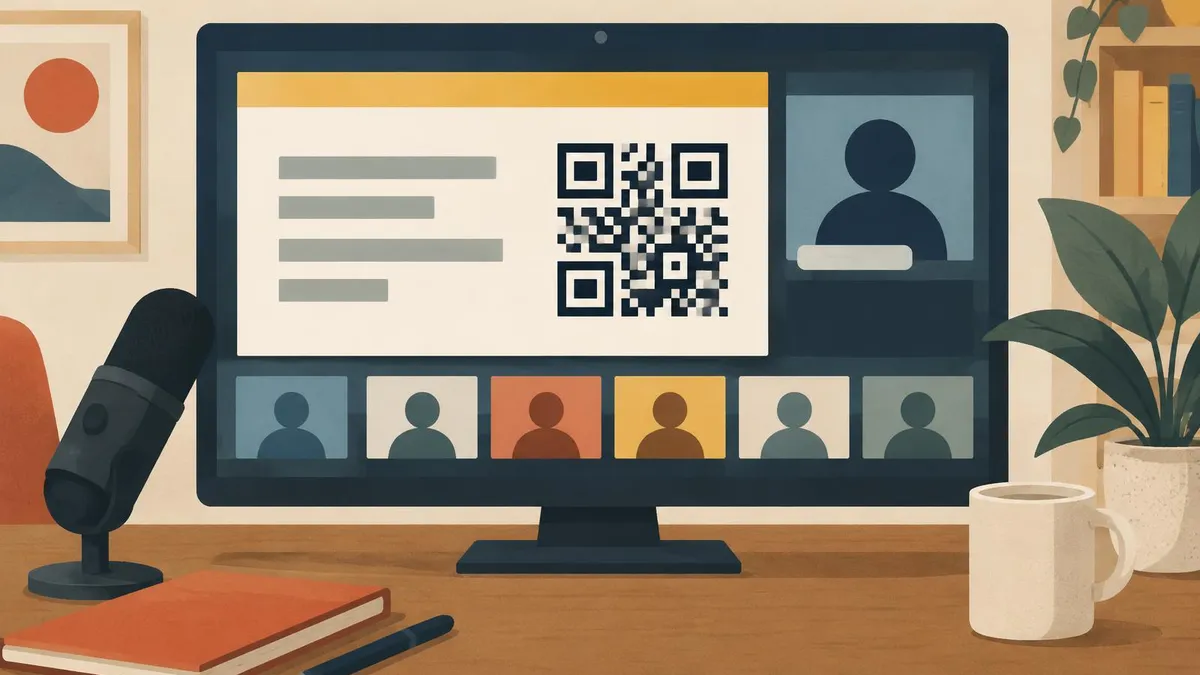
Zoom is used for everything from quick one-to-one calls to webinars with hundreds of attendees. In each format, people need a way to find you again afterwards. This guide shows where your virtual business card fits on Zoom, and how meetings and webinars differ.
For email signatures and Teams as well, see our pillar guide to email signatures, Teams and Zoom.
Menu names checked on 31 Oct 2026; if your version differs, look for Background & Effects in Settings.
Key points
- A virtual background QR code works in meetings, and in webinars when your video is on.
- Your display name can show your role and company, so people know who you are.
- Paste your link in the meeting chat, but do not rely on it being saved for everyone.
- In webinars, use the speaker details, your last slide and the follow-up email.
- A large QR code stays scannable in recordings, which helps people who watch later.
Meetings vs webinars: where your details appear
| Where your details can appear | Zoom meeting | Zoom webinar |
|---|---|---|
| Virtual background QR code | Yes, for everyone who sees your video | Yes, when you are a host or panelist with video on |
| Display name with role and company | Yes, under your video | Yes, for panelists |
| Chat link | Yes, if chat is enabled | Depends on the chat settings the host chooses |
| Last slide QR code and link | Yes, when you share your screen | Yes, often the most seen place |
| Speaker details on the registration page | No | Often available, depending on plan and settings |
| Follow-up email | You send it yourself | Hosts can usually set one up for attendees |
| Recording | Your background and slides are captured | Your background and slides are captured |
A virtual background QR code
To add a virtual background in the Zoom desktop app:
- Open Settings.
- Select Background & Effects, then Virtual Backgrounds.
- Select the + button and choose Add Image.
- Choose your image and select it.
Put the code in an upper corner, away from your head, and make it large. Use a dark code on a light panel with a clear margin. Zoom usually mirrors your own preview, so the code may look backwards to you while others see it correctly. Our guide to QR codes in Zoom and Teams backgrounds covers size, placement, contrast and testing in full.
If your organisation manages your Zoom account, an administrator may have switched virtual backgrounds off.
Your Zoom profile and display name
Your display name appears under your video and in the participant list. It is often the first thing people read.
- Set it in your Zoom profile. Sign in to your Zoom account on the web and edit your profile. Depending on your account, you may be able to add your job title and company there as well.
- Use a clear format, such as "Your Name, Job Title, Company". Keep it short enough to fit under a small video tile.
- Rename for a single meeting if you need to. In many meetings, you can rename yourself from the participants list, if the host allows it.
Avoid putting a full web address in your display name. It gets cut off and cannot be clicked. Use the chat and your background for the link.
Dropping the link in Zoom chat
The meeting chat is the quickest way to share a clickable link.
- Paste it early, with one line: "My contact details and booking link, if useful."
- Paste it again near the end for anyone who joined late.
- Keep it as a snippet on your computer, so it takes seconds.
Be careful about what happens to the chat afterwards. Whether chat messages are saved, and who can find them later, depends on the host's settings and on your account. Some meetings keep a chat that continues after the call; others do not save it at all for guests. Do not rely on the chat as the only place your link appears. Put it in the invite and your follow-up email too.
Webinars
Webinars are where your background matters less and your slides matter more. Attendees often see your slides for most of the session.
Speaker details
Depending on your plan and settings, Zoom webinar hosts can usually add speaker information to the registration or event page, such as a name, title and short description. If you are a panelist, ask the host to include your profile link in your speaker description.
The last-slide QR code
Put a large QR code and your short profile link on your final slide. Leave it on screen while you take questions. It is the moment attendees are most likely to want your details. If you speak in the middle of a session, add the code to your section's last slide too.
The follow-up email
Zoom webinar hosts can usually set up follow-up emails to attendees, and sometimes to people who registered but did not attend. Ask the host to include each speaker's profile link. If you host, add your own.
Our guide to virtual business cards at virtual events and webinars covers speakers, breakouts and hosting, and our guide to using a virtual business card in remote sales covers what to do with the contacts you collect afterwards.
Waiting rooms and Zoom Events
Hosts can turn on a waiting room, where people wait before being admitted. Depending on your account, the waiting room can be customised with a title, a logo or a short description. If you host regular calls with external guests and your account allows it, a short line in the description can point people to your profile link.
Zoom Events, Zoom's platform for larger online events, offers its own event pages and lobby. What is available depends on your plan. Where speaker or host details can be added, include your profile link there. If you are not sure what your account offers, check the settings or ask your Zoom administrator.
Recording etiquette
Many meetings and webinars are recorded and watched later. Your QR code can still help then.
- A large code stays scannable in a recording played full screen. A small one rarely does.
- Recording layouts matter. If the recording shows a small gallery view, your background code may be too small. Your last slide is the safer place.
- Tell people it is there. "If you are watching the recording, the code on this slide opens my contact details."
- Respect consent. Always follow your organisation's rules on recording, and tell participants when a call is recorded.
Because the code points at your profile rather than storing your details, a recording made today keeps opening your current details next year.
Scheduling and your personal meeting room
Your details can reach people before the call starts.
- In the invite. When you schedule a meeting, add a short line with your profile link to the description, above the joining details.
- In your personal meeting room. If you use the same personal room for many calls, keep your background, display name and waiting room description consistent, so regular guests always see your current details.
- In your calendar booking page. If people book time with you through a booking link, the confirmation can carry your profile link too.
Common Zoom mistakes
- A QR code that is too small for gallery view. Make it larger than feels natural.
- Background effects on top of the code, such as blur or filters. They soften the edges.
- A display name that is too long. It gets cut off under small tiles.
- Relying on chat being saved. Settings vary. Use the invite and follow-up email too.
- Forgetting the last slide in a webinar, where attendees most want your details.
Teams and other platforms
If you also meet clients on Microsoft Teams, our Teams guide covers status notes, invites and external chats, and our Google Meet guide covers Calendar invites and Meet backgrounds. Use the same profile link and the same background design on every platform.
Choosing a code built for screens
Our Virtual Business Card QR Code is designed for video calls and webinars: a dynamic code for backgrounds and slides, pointing at a profile you can edit at any time. It is paid once, and set-up is not instant: after payment, your order is recorded for profile set-up.
Frequently Asked Questions
How do I add a QR code background in Zoom?
In the Zoom desktop app, open Settings, then Background & Effects, then Virtual Backgrounds. Select the + button, choose Add Image and select your file.
Should I put my profile link in my Zoom display name?
No. Long links get cut off and cannot be clicked. Use your name, role and company in the display name, and share the link in the chat.
Is the Zoom chat saved after the meeting?
It depends on the host's settings and your account. Do not rely on it alone. Put your link in the invite and follow-up email too.
Where should my QR code go in a webinar?
On your last slide, with your short profile link. Leave it on screen during questions.
Will my QR code work in a Zoom recording?
Usually, if it is large and the recording shows your slides or video full screen. Small background codes in gallery view rarely scan.
Can I customise the Zoom waiting room?
Depending on your account, hosts can add a title, logo or description to the waiting room. Check your settings.