How to Use a Virtual Business Card in Microsoft Teams
Published · Updated · Video calls
By Virtual Business Cards Editorial Team
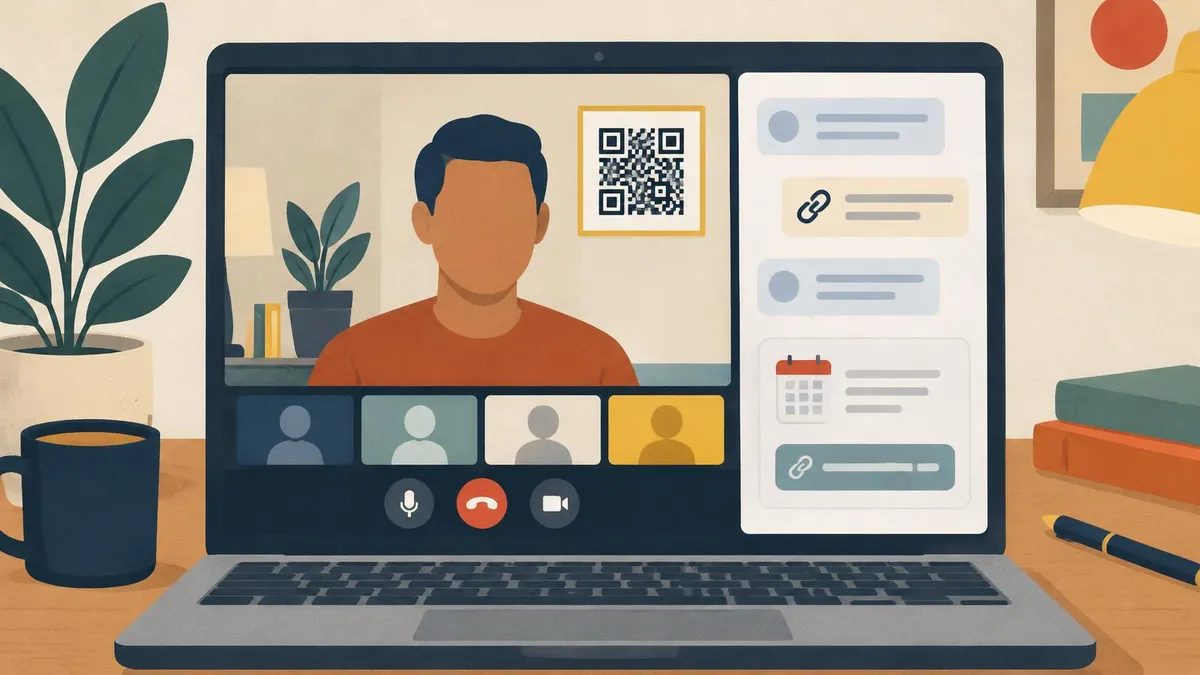
For many remote and hybrid workers, Microsoft Teams is where the working day happens. Clients join meetings as guests. Partners message you from other organizations. Colleagues you have never met look you up before a call. This guide shows the places in Teams where your virtual business card fits, and who sees each one.
For email signatures and Zoom as well, see our pillar guide to email signatures, Teams and Zoom.
Menu names checked on 31 Oct 2026; if your version differs, look for Background effects or Video effects in the meeting settings.
Key points
- A background QR code lets anyone in a meeting save your details without interrupting.
- Your status note can carry your profile link for people inside and, in some setups, outside your organization.
- Paste the link in the meeting chat at the start of each external call.
- Add the link to the meeting invite body, so guests have it before they join.
- For a whole team, use the same background design and template, with each person's own code.
Teams surfaces at a glance
| Teams surface | Who sees it | When they see it |
|---|---|---|
| Meeting background with QR code | Everyone in the meeting with video on | During the call, while your camera is on |
| Status note | People who view your profile card or message you, depending on settings | Any time, including before a first message |
| Meeting chat | Meeting participants, including guests while they have access | During the call, and afterwards for those who keep access |
| Meeting invite body | Everyone invited | Before the call, in their calendar |
| One-to-one or group chat | The people in that chat, including external contacts where allowed | Any time you send it |
A Teams background with your QR code
A QR code in your background is the one thing a meeting guest can act on without typing. To add your background in Teams:
- On the pre-join screen, open Background effects or Video effects (the label depends on your version).
- Select Add new and upload your image.
- Select it and join the meeting.
- During a meeting, open More, then Video effects, to change it.
Place the code in an upper corner, where your head and shoulders will not cover it, and make it large: around a quarter to a third of the image height. Use a dark code on a light panel with a clear margin around it. Our full guide to QR codes in Zoom and Teams backgrounds covers sizes, contrast and testing in detail, so we will not repeat it here.
Mirrored self-view vs what others see
Teams usually shows your own video mirrored, like a mirror. Your QR code and any text may look backwards to you. Other people see them the right way round, so the code scans normally for them. Do not flip the image to correct it. Many versions of Teams include a setting to mirror or unmirror your own preview, if you want to check.
If Add new is missing, your organization may control backgrounds. Ask IT whether a branded background with space for each person's code can be added to the approved list.
Your profile link in your Teams status and profile
Most of your Teams profile, such as your name, title and department, usually comes from your organization's directory. You may not be able to edit it yourself. Your status message is different. It is under your control.
- Select your profile picture.
- Choose the option to set a status message.
- Type a short note, for example "Save my contact details:" followed by your profile link.
- Choose whether to show it when people message you, and how long it lasts, where your version offers these options.
- Save it.
Who can see your status note depends on your organization's settings, including whether people in other organizations can see it. Keep the note short and useful. It is a good place for your profile link while you are running a project with external partners.
The chat at the start of a call
The meeting chat is the most reliable place to share your link during a call.
- At the start, paste your profile link with one line: "My details and booking link, if useful."
- Near the end, paste it again for anyone who joined late.
- Save the text as a snippet or shortcut on your computer, so it takes seconds.
Guests who join from outside your organization may lose access to the meeting chat after the meeting, depending on how they joined and your organization's settings. That is why the invite and a follow-up email matter too.
Meeting invites
When you schedule a Teams meeting from Outlook or from the Teams calendar, the invite has a body where you can write a message. Add a short line above the joining details:
"Before we meet: my contact details and booking link are here" followed by your profile link.
Guests then have your details in their calendar before the call, and afterwards. It also helps when someone else in their organization is forwarded the invite.
External guests and federated chats
Teams lets people from different organizations work together in a few ways:
- Guests in meetings, who join from an invite link.
- External chat, where your organization allows chatting with people in other organizations.
- Guest access to teams and channels, where someone from outside is added as a guest.
Your profile link works the same in all of them. It is a normal web address, so it opens in a browser for anyone, whatever organization they belong to. Some features may be limited in external chats, depending on settings on both sides, but a link in a message is about as simple as it gets.
A good habit: when an external partner first messages you, reply with your profile link. They can save your details once and keep them, whichever system their company uses.
After the call
The minutes after a Teams meeting are when people decide whether to follow up. Make it easy.
- Send a short follow-up email with your profile link in the signature, and a line in the body if you promised a document or a next meeting.
- Post the link in the chat if the meeting continues as a group chat, so it sits next to the notes.
- Check your status note is still current, especially if you set it for a specific project.
- Update your profile, not your messages. If something changed during the call, such as a new contact number, edit the profile once and every link you shared shows the change.
Common mistakes in Teams
- A small QR code. Teams tiles can be tiny in gallery view. Make the code bigger than feels natural.
- A busy background. Patterns behind the code make it harder to scan.
- Relying on the meeting chat alone. Guests may lose access to it after the call.
- A status note that has expired. Many versions let you set an end time. Renew it if you still want the link there.
- Different links in Teams and email. Use one profile link everywhere.
A team rollout
If your whole team uses Teams with clients, agree a shared approach:
- one background design, with space for each person's own QR code and short link;
- the same template and colours on every profile;
- a standard status note format with the profile link;
- the link in every meeting invite template.
Our guide to rolling out virtual business cards in hybrid teams has a full checklist, a privacy list and a table of who does what. If your team also uses Zoom with some clients, our Zoom guide covers the differences.
Choosing a code built for Teams
Any dynamic QR code that opens your profile works in a Teams background. Our Virtual Business Card QR Code is designed for screens: a dynamic code for Teams, Zoom and Meet backgrounds, slides and webinars, pointing at a profile you can edit at any time. It is paid once, and set-up is not instant: after payment, your order is recorded for profile set-up.
Frequently Asked Questions
How do I add a QR code background in Microsoft Teams?
On the pre-join screen, open Background effects or Video effects, select Add new and upload your image. During a meeting, use More, then Video effects.
Why does my QR code look backwards in Teams?
Your own preview is mirrored. Other people see your background the right way round, so the code scans for them.
Can I add my profile link to my Teams profile?
Your main profile details usually come from your organization's directory. You can add the link to your status message instead.
Can guests see the meeting chat after the call?
It depends on how they joined and your organization's settings. Put your link in the invite and your follow-up email as well.
Does my profile link work for people outside my organization?
Yes. It is a normal web address that opens in any browser, whichever organization the person belongs to.
What if my company blocks custom backgrounds?
Ask IT whether a branded background with your QR code can be added to the approved list. Meanwhile, paste your link in the chat and the invite.